
- Online video downloader
- Streaming Products
- BD-DVD products
- Store
- Useful Articles
- support
StreamByte for Video is a professional video downloader for downloading videos from streaming video platforms such as Netflix, Amazon Prime, Disney+, YouTube, HBO, Hulu, etc. With decryption and DRM removal technology, it can save videos in MP4, MKV, MOV formats, allowing you more flexible usage such as storing videos and transferring them to different devices. With 8x faster download speed and batch download function, you can quickly download videos up to 8K resolution. Check out the complete guide to download videos and enjoy them offline now!
You may be wondering about the difference between the free trial version and the full version, but in fact, there is no significant difference between the product features of the two.
The free trial version offers a free trial. You can try out the features of StreamByte for Video. However, the free version only allows you to download the first 5 minutes of each video from video streaming services such as Amazon Prime, Netflix, and Disney, and the free trial time and video download quantity for video sharing services are limited.
By upgrading to the full version, you can download full videos without restrictions and always get the latest features for free.
| function | Free trial | Product version |
| Video download quantity | Limited | Unlimited |
| Video download length | Limited | Unlimited |
If you would like to use all the features of StreamByte for Video without any restrictions, please use the retail version.
Language Settings: The software can be switched to seven languages, including English, Chinese, Japanese, French, Spanish, German and Portuguese.
Download settings management: You can unify the settings for video downloads, such as video output format, quality, subtitle model, etc.
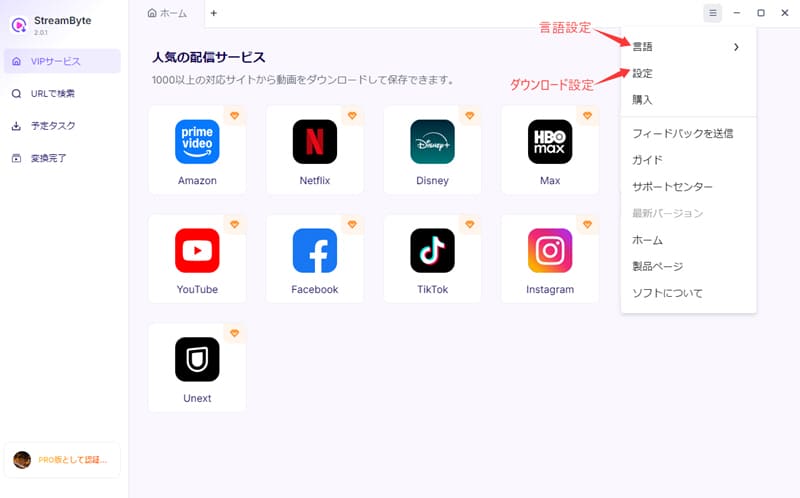
Step 1: Download and install StreamByte for Video
Download the software for free from the official website and install it on your PC. After installation, launch the software and you will be prompted to register. Create an account with your email address and password and log in with that account.
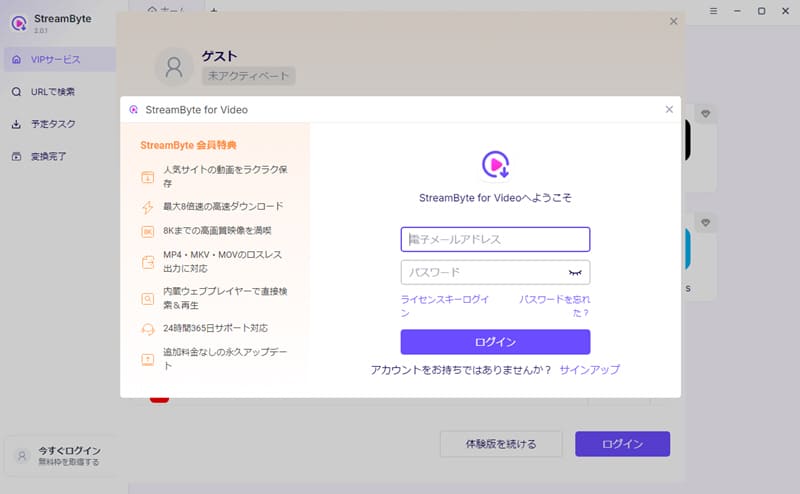
Step 2:Choose your video platform and log in
When you log in to StreamByte for Video, the main interface will display several popular streaming platforms (Amazon Prime, Netflix, Disney+, HBO, Hulu, YouTube, U-NEXT, etc.). Select the platform from which you want to download videos. You can also download videos by pasting the URL into the search bar.
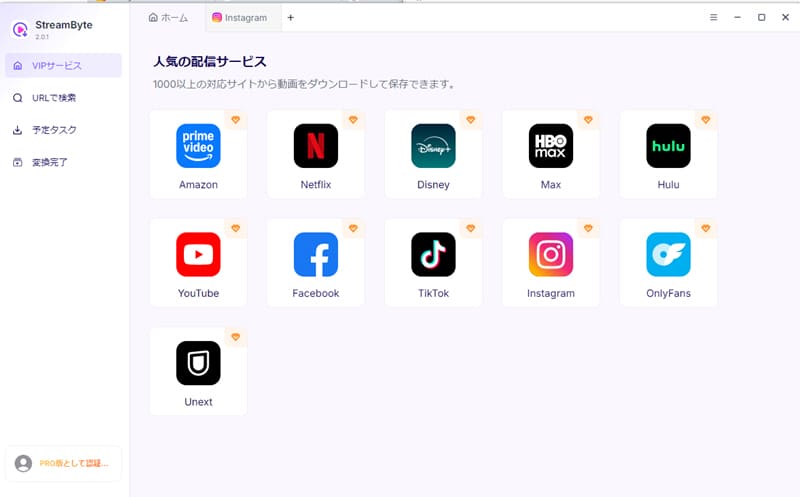
Go to the interface of your chosen platform and log in with StreamByte for Video's built-in web player. Once logged in, search for the video you want to watch.
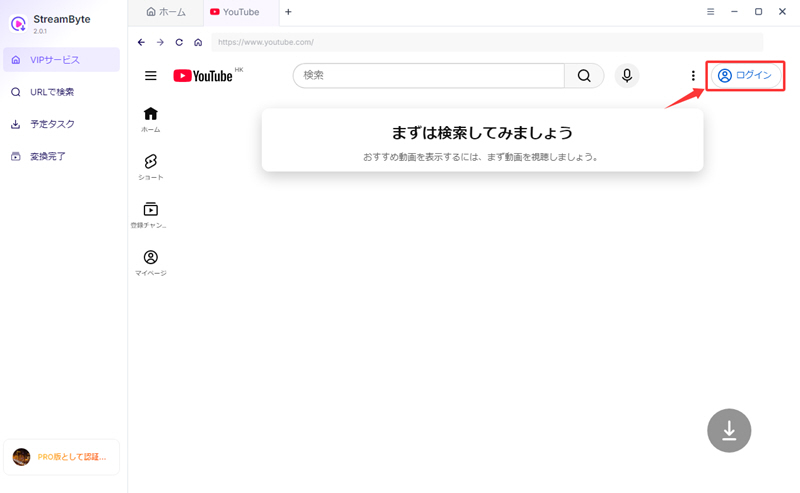
Step 3, Select the video you want to download
Once you've found the video you want to download, select it using the download button in the bottom right corner.
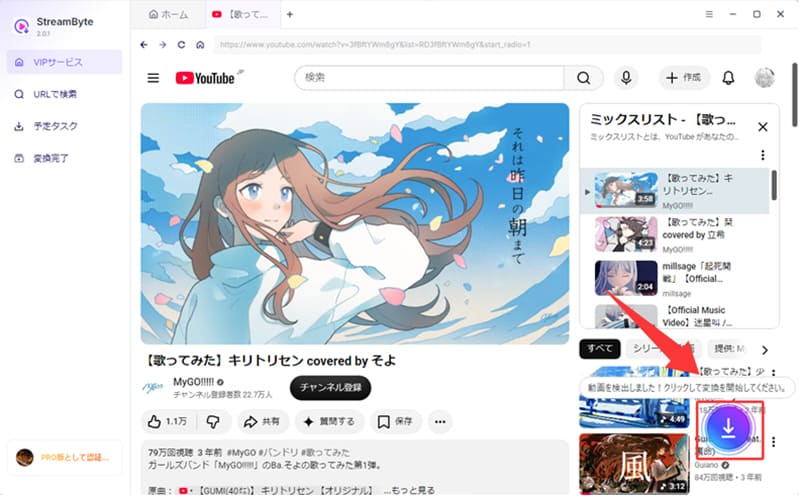
You can choose what you want to download: movies, season episodes, full seasons, or season recaps.
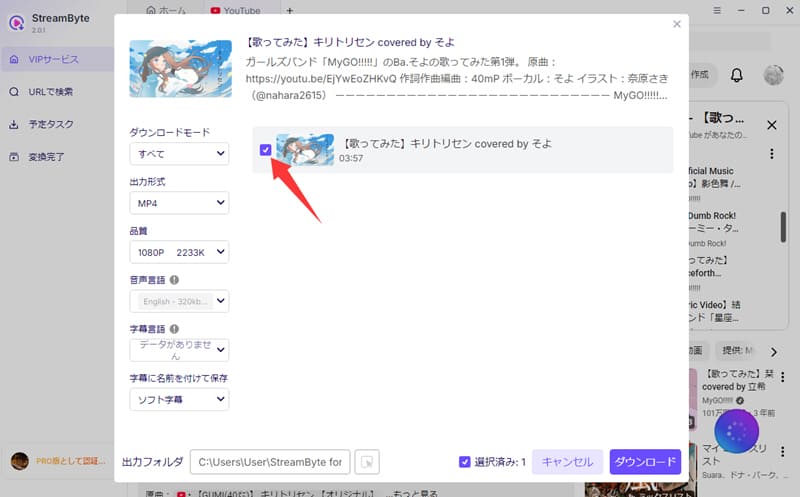
Note: "StreamByte for Video" only supports downloading videos that can be played normally. Videos that require additional subscriptions cannot be downloaded with this software.
Step 4, Adjust Output Settings
By default, StreamByte for Video selects video with audio and subtitles, MP4 output format, soft subtitles, etc. You can change these settings to your liking.
Download options: All/Audio only/Subtitles only:
| Download options | All/Audio only/Subtitles only |
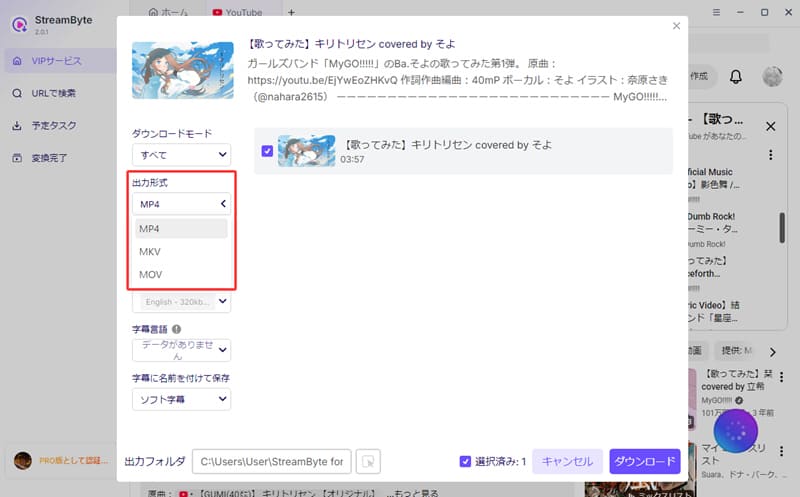
| Output Format | MP4/MKV/MOV |
| quality | High/Medium/Low selectable, maximum 8k resolution output possible |
| How to save subtitles | Soft subtitles/Hard-coded subtitles/External subtitles |
In addition, "StreamByte for Video" allows you to set the audio and subtitle language and the output folder.
Note: The target video must have the subtitle language and audio language.
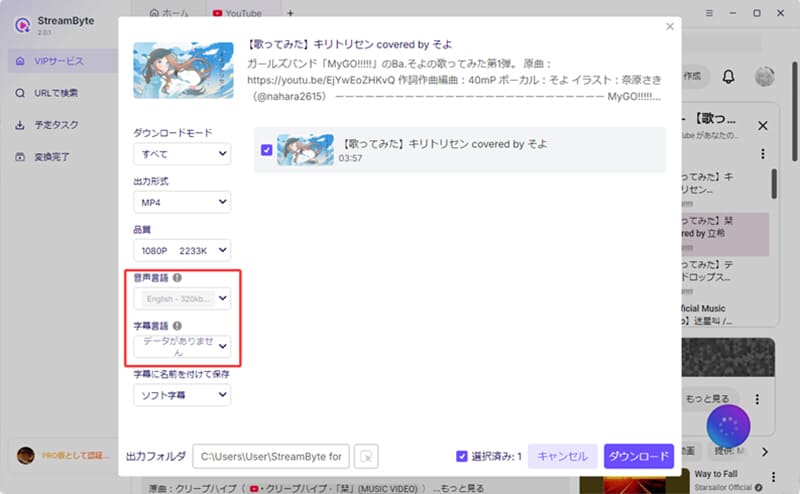
Step 5, Download Video
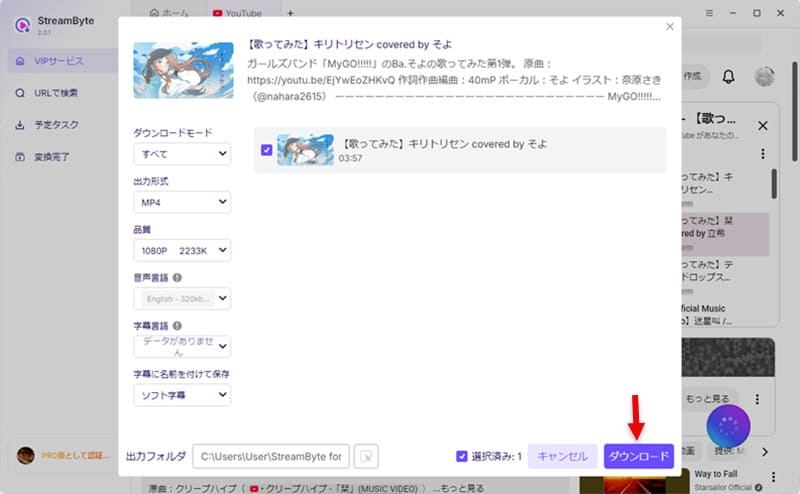
Once you've selected the video and settings, click the purple "Download" button in the bottom right corner to begin the download. You can check the download progress on the screen.
Videos on most streaming platforms are protected with DRM (Digital Rights Management), preventing users from downloading them in regular digital formats (such as MP4).
"StreamByte for Video" can help you remove this DRM protection and download the videos locally to save them permanently. Here we will show you how to convert streaming videos to DRM-free universal video file formats.
Step 1: Change video output format
The steps are similar to those above. After selecting the target video, tap the output format selection box on the left, and all formats supported by "StreamByte for Video" will be displayed, so choose the one you want.
Step 2: Convert to DRM-free video
Once the setup is complete, click the purple "Download" button in the bottom right corner, as mentioned earlier. StreamByte for Video will automatically download DRM-free videos. In just a few minutes, you'll have DRM-free videos that you can watch offline or transfer to other devices!
Experts in supporting offline viewing of streaming video services
Subscribe to StreamByteCopyright © 2026 StreamByte. All rights reserved.



Get the latest news, product upgrades, information, guides, discounts and more about StreamByte.
Please enter a valid email address.






 English
  Japanese
  Chinese (traditional)
  German