
- Streaming Products
- BD-DVD products
- Store
- Useful Articles
- support
Share this article!


On the internet, it's common to see reports of errors such as HDCP error 7279 and messages like "This video cannot be played because your device does not meet the content protection standards." These issues are a major concern for people who want to play Amazon Prime Video content on different devices or monitors.
This article will provide a brief explanation of what HDCP is, and then detail various methods for bypassing or removing HDCP restrictions on Amazon Prime Video. Furthermore, we will also explain a method that can fundamentally resolve HDCP restrictions, so please read to the end.

Related Posts:
HDCP (High-bandwidth Digital Content Protection) is a copyright protection technology that encrypts content during digital transmission of high-resolution video and audio to prevent unauthorized copying. This technology protects communication between the playback device and the display, thereby preventing the unauthorized acquisition and duplication of video and audio data.
HDCP playback restrictions occur when both connected devices do not support HDCP. For example, if you try to play content by connecting two incompatible devices, the video may not display or an error message may appear. In fact, if you try to record copyrighted videos such as Amazon Prime Video using common methods, The screen goes blackIt is by design.
HDCP is used by many streaming services, including Prime Video. If either the playback device, the display, or both do not meet the HDCP standard, HDCP-protected content cannot be played. As a result, error code "7279" or a message such as "Your device does not meet the content protection standards, so this video cannot be played" will be displayed, and normal playback will not be possible.
If you see an error message such as "HDCP not supported" on Amazon Prime Video, it's often not a problem with the device itself, but rather that there's an older standard or HDCP-incompatible device somewhere in the connection path. The main causes are likely the following points:
Browser hardware acceleration settings
Compatibility issues with GPU drivers and video decoders can sometimes cause unstable HDCP handshakes. In such cases, HDCP errors or black screens may occur during playback, even if they are not directly related to the HDCP standard or device compatibility.
If the problem persists after checking all of the above causes, disabling hardware acceleration in your browser may switch the playback process to software-based acceleration, potentially improving playback stability.
If you encounter an HDCP error, the first thing you should check is whether the device or monitor you are using supports the HDCP standard. Especially when playing 4K content, you need to use a device or monitor that supports HDCP 2.2 or higher. Older TVs and monitors may not support this standard, in which case playback may not work properly. Checking your device specifications and connecting to HDCP-compatible equipment may resolve the issue. The specific steps are as follows:
step 1First, check if the devices connected to the display support HDCP 2.2/2.3. If any of the devices do not support HDCP, consider replacing them with compatible devices.
Step 2To avoid problems caused by insufficient bandwidth, replace the HDMI cable with one that supports Premium High Speed or Ultra High Speed, and, if possible, perform playback tests by directly connecting the device and the display without using any relay equipment.
Step 3If playback still doesn't work, try temporarily lowering the resolution to 1080p and see if that resolves the issue. If the problem is resolved, then return to the 4K or HDR setting and check again.
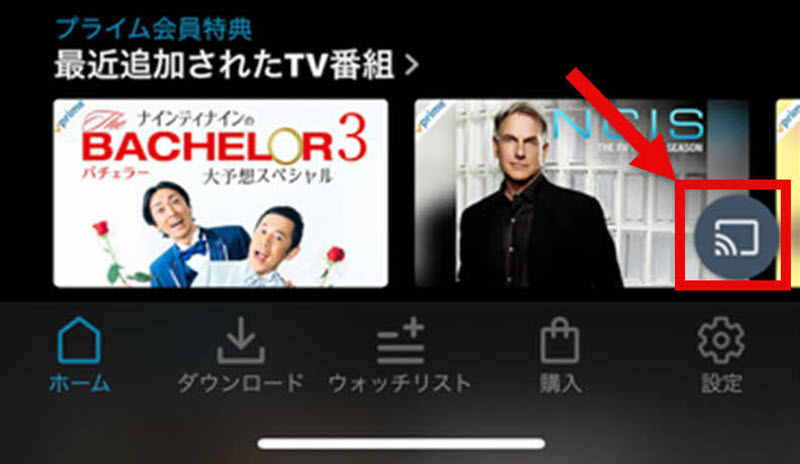
If you're experiencing HDCP errors with an HDMI connection, you can try using Amazon Prime Video's casting function. Using Chromecast, Fire TV, or the Prime Video app on a compatible smart TV, you can play videos directly from your smartphone or PC to your TV. This method bypasses HDMI restrictions, potentially reducing the likelihood of HDCP errors caused by the connection path. The general procedure is as follows:
step 1Connect your TV or streaming device, such as Chromecast or Fire TV, to the same internet connection.
Step 2Open Amazon Prime Video on your smartphone or PC and select the cast icon that appears on the playback screen.
Step 3If you select a TV or streaming device from the list of connectable devices, the video will play on the TV or other streaming device.
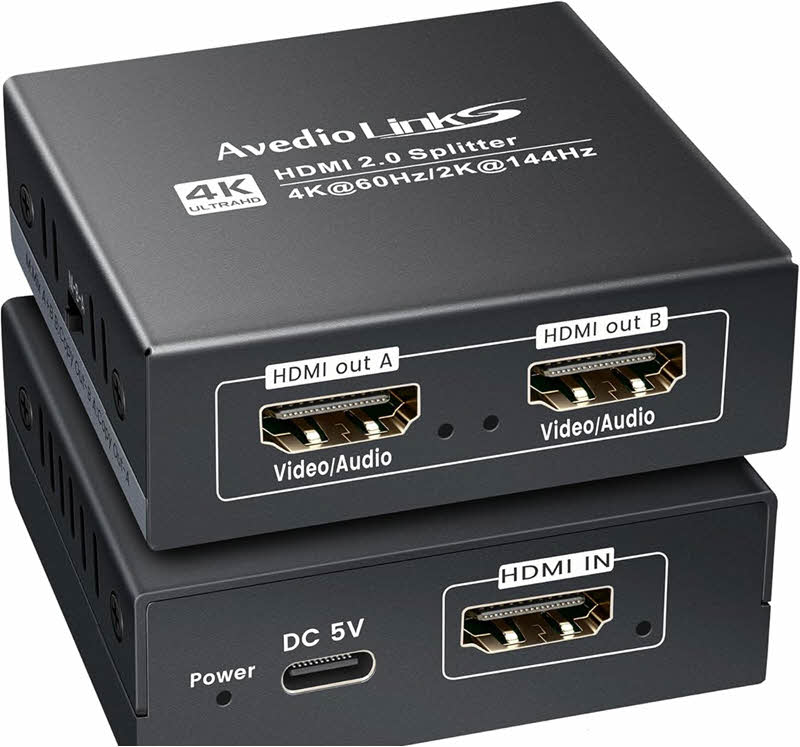
Some HDMI splitters have an HDCP decryption function. By using such a device, HDCP-protected signals output from streaming devices may be playable on TVs that do not support HDCP or only support up to HDCP 1.1.
However, product specifications and operation vary by manufacturer, so please refer to the instruction manual for the product you purchased for actual operation methods and compatibility information. The following is an example of a general connection procedure.
step 1First, power the HDMI splitter, and then connect the devices you will use for playback, such as a PC or streaming device, to the input ports of the HDMI splitter.
Step 2Connect the output port of the splitter to your TV. If needed, you can also output video to multiple screens by connecting the remaining output ports to another monitor or capture board.
Step 3After connecting, launch the playback device and play Amazon Prime Video to check if the video displays correctly.
The above outlined the main methods for bypassing the HDCP restriction on Amazon Prime Video. However, these methods are often complicated or only provide a temporary solution. Therefore, as a way to fundamentally resolve the HDCP restriction,StreamByte for VideoI will introduce "[this]".
This software is powerfulRemove DRM protectionIt features a function that allows you to easily bypass the HDCP restrictions on Amazon Prime Video. Furthermore, it allows you to save videos in common formats such as MP4, making it possible to freely edit and move saved videos. There is no need to prepare additional equipment such as HDMI splitters, and you can transfer and play them on your favorite device such as a PC, smartphone, or tablet. This significantly reduces the time spent on the process and greatly lowers the barrier to operation.
StreamByte for Video
This is a video downloader that supports major streaming services such as Netflix, Amazon Prime, and YouTube. You can save and enjoy your favorite videos with high image quality up to 8K and Dolby Atmos audio.
"Why we recommend StreamByte for Video"
HereStreamByte for VideoThis guide will show you how to completely remove the HDCP restriction on Amazon Prime Video using [this method].
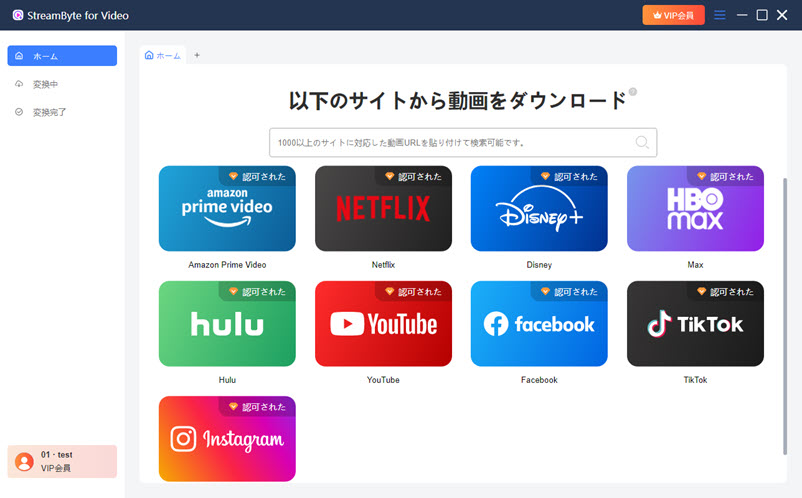
step 1After registering for "StreamByte for Video," select "Amazon Prime Video" from the list of streaming services displayed on the main screen.
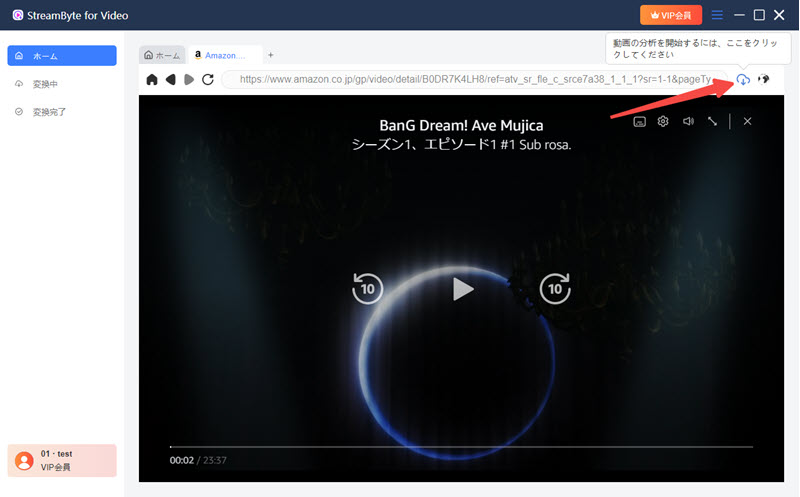
Step 2After logging into your Amazon account, search for the video for which you want to remove the HDCP restriction. Open the page of the target video, and the option will appear in the upper right corner.Cloud IconClicking this will add the video to your download list.
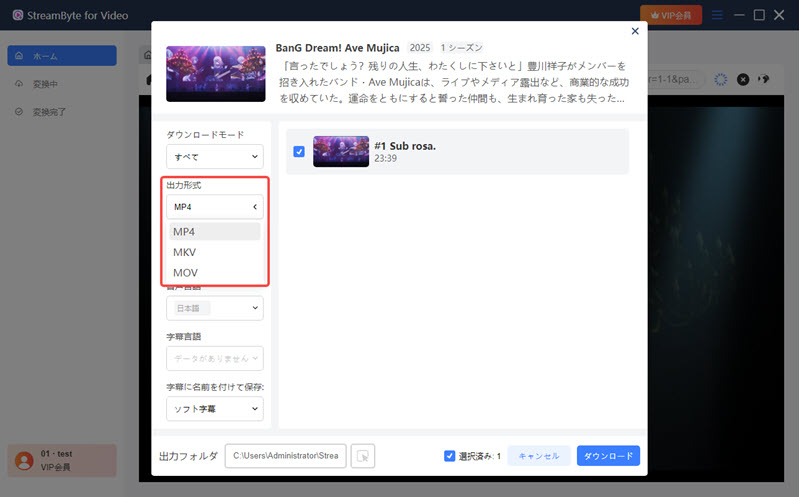
Step 3On the download settings screen, you can configure the output format, audio, subtitles, and other settings to your liking. To ensure easy playback on other devices, we recommend selecting the highly versatile MP4 format.
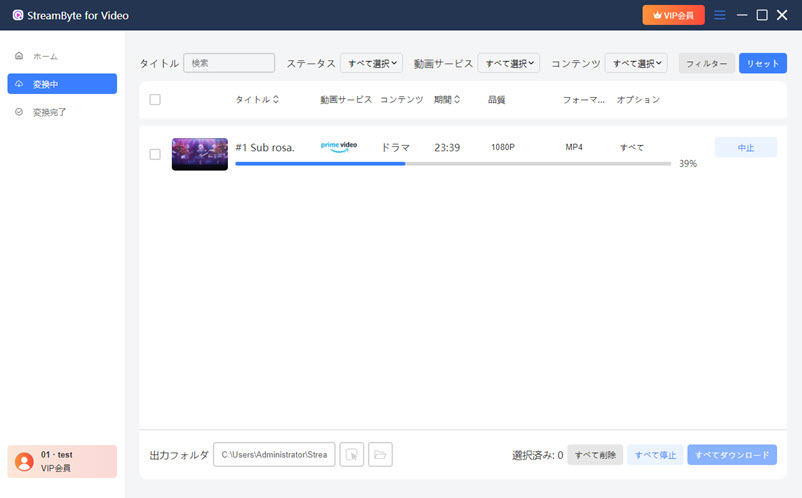
Step 4Finally, clicking the "Download" button will start the video download. You can check the progress on the "Converting" screen. This will allow you to...Save Amazon Prime Video videos to your computerThis will allow you to watch it offline.
"StreamByte for VideoBy using this, you can bypass HDCP restrictions with its powerful DRM protection removal function.Easily save videos from Amazon Prime Video.Yes, you can. Videos saved this way can be freely managed and moved, making them playable on various devices.
Another major advantage is that, compared to other methods, there's no need to purchase additional equipment, and you can perform all operations from searching for videos to downloading them in one go using the built-in web player. Furthermore, the software interface is simple and easy to understand, so even beginners can start using it right away.
100% safe and virus free
100% safe and virus free
| HDCP-compatible devices and monitors | Amazon Prime Video's casting feature | HDMI splitter | StreamByte for Video | |
| Difficulty setting | low | low | expensive | low |
| additional equipment | can be | none | can be | none |
| cost | expensive | free | Inexpensive | Free trial available |
| Versatility | expensive | low | low | expensive |
| Recommendation | ★★★☆☆ | ★★★★☆ | ★★★★☆ | ★★★★★ |
The table above summarizes the advantages and disadvantages of each method for removing HDCP restrictions on Amazon Prime Video, making it easy to understand.
Looking at this table, compared to other methods,StreamByte for VideoIt's clear that this is superior not only because of its ease of setup, but also because it doesn't require the purchase of additional equipment and possesses extremely high versatility, making it suitable for most situations.
Also, "StreamByte for Video"free trialA version with HDCP restrictions is also available, so if you're having trouble with Amazon Prime Video's HDCP restrictions, please take this opportunity to try it out.
100% safe and virus free
100% safe and virus free
HDCP is a technology implemented to protect copyright, and circumventing the HDCP protection on Amazon Prime Video is, in principle, illegal. However, if the acquired content is not used commercially or distributed to third parties, and is used only for personal learning or viewing purposes, it may not be strictly prosecuted. Nevertheless, since it involves copyright, it remains a gray area. The final decision must be made in accordance with the laws and regulations of your region.
Even when connecting your iPhone to a TV or monitor with an HDMI cable, Amazon Prime Video may not display correctly. The main reasons for this include external output restrictions due to copyright protection such as HDCP or DRM, the use of a monitor or cable that doesn't support HDCP, or an incompatible HDMI adapter. Furthermore, outdated iOS or the Prime Video app, or older iPhones with limited HDMI output support, can also cause display issues.
Basically, Amazon Prime Video cannot be viewed properly on monitors that do not support HDCP. If you wish to watch in an environment that does not support HDCP, you can use an HDCP-compatible HDMI splitter or converter. However, due to the specifications of Amazon Prime Video, it is not guaranteed that it will play properly in all environments. In such cases,StreamByte for VideoIt is recommended to use dedicated video download software to save the video in a general-purpose format such as MP4, and then transfer it to a compatible device for viewing.
This article first briefly explained what HDCP is in the context of Amazon Prime Video, and then introduced the main methods for bypassing or circumventing HDCP restrictions on Amazon Prime Video. However, these methods can be time-consuming or only provide temporary solutions. Therefore, as a way to fundamentally resolve HDCP restrictions,StreamByte for Video" was introduced.
This software allows you to bypass Amazon Prime Video's HDCP restrictions and save videos in 1080p high definition. Furthermore, the saved videos are stored locally in a common format such as MP4, allowing for free transfer and playback across various devices without being affected by HDCP errors due to differences in device generations. By bypassing HDCP restrictions, you can fundamentally resolve the HDCP error problem.
"StreamByte for Video"forFree trialWe also offer a solution, so if you're having trouble with the HDCP restrictions on Amazon Prime Video, please give it a try.
100% safe and virus free
100% safe and virus free
Born in Tokyo in 1997. After graduating from a university in London, he worked at a major IT media company, writing articles about video streaming services, video downloaders, and digital content.More than 3 years of experience in editing, proofreading, and writing directionThe articles he has worked on have garnered over 5 million page views, and he is well-known for producing content that is carefully crafted from the reader's perspective.
Currently, as an editor and web writer at StreamByte, he works on creating articles that help users solve their problems, focusing on information related to video streaming services and downloads, with the aim of being "user-oriented, easy to understand, and immediately useful."
Experts in supporting offline viewing of streaming video services
Subscribe to StreamByteCopyright © 2026 StreamByte. All rights reserved.



Get the latest news, product upgrades, information, guides, discounts and more about StreamByte.
Please enter a valid email address.





 English
  Japanese
  Chinese (traditional)
  German