
- Online video downloader
- Streaming Products
- BD-DVD products
- Store
- Useful Articles
- support
Share this article!


"Is there a way to screen record Hulu? If so, please let me know."
Questions like this are frequently seen on Q&A sites such as Yahoo! Answers. Hulu is one of the most popular video streaming services, offering a large amount of attractive content including movies, dramas, and anime. As a result, many users want to record and save their favorite shows so they can watch them offline. However, when they actually try to record, they often encounter various problems such as DRM protection and recording restrictions.
This article will clearly explain five commonly used methods for recording and saving Hulu videos. Please read to the end to find the method that suits you best.

Related Posts:
Hulu offers an official download function, but because much of the content is DRM-protected, there are some limitations on downloading and playback. For example, there are limits to the number of titles that can be downloaded, and saved videos can only be kept for a maximum of 30 days. Also, once offline playback is started, it must be watched within 48 hours.
Due to these limitations, many users choose to record and save Hulu videos. The main advantages of recording and saving videos are as follows:
Many users experience the frustrating phenomenon of the screen going completely black when recording Hulu videos. While this problem can be caused by various factors, the most common causes are listed below. If you encounter a similar problem, please refer to this information.
If you want to record and save Hulu, the best option is to use dedicated video download software. StreamByte for VideoThe main advantage of this method compared to other common recording methods is that it avoids the DRM protection affecting Hulu videos when saving them, and it also avoids common problems such as the recording screen turning completely black.
Furthermore, the software includes a built-in web player, eliminating the need to switch between a browser and other software. You can perform all tasks, from searching for Hulu videos to saving them, with just one application. In addition to the common MP4 format, it can also output in formats such as MKV and MOV with virtually no loss of quality. For those who want to save Hulu videos, StreamByte for VideoThis is a very convenient and easy-to-use option.

StreamByte for Video
This is a video downloader that supports major streaming services such as Netflix, Amazon Prime, and YouTube. You can save and enjoy your favorite videos with high image quality up to 8K and Dolby Atmos audio.
Why StreamByte for Video is recommended
Here, "StreamByte for VideoThis explains how to use [this method] to easily save Hulu content in high definition.
step 1"StreamByte for Video"RegistrationAfter that, several popular streaming services, including Hulu, will be displayed on the main screen. Select Hulu from the list of services that are displayed.
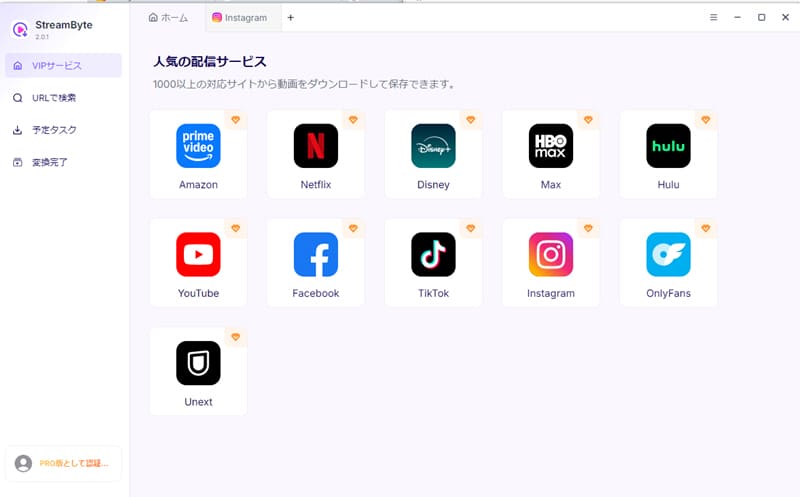
Step 2The Hulu login screen will appear, so log in with your account. After logging in, use the search function in the built-in player to find the Hulu video you want to save.

Step 3Once you find the video you want to save, click the download icon that appears on the screen.Download ListAdd it to [the file]. This will allow you to save all the videos together.
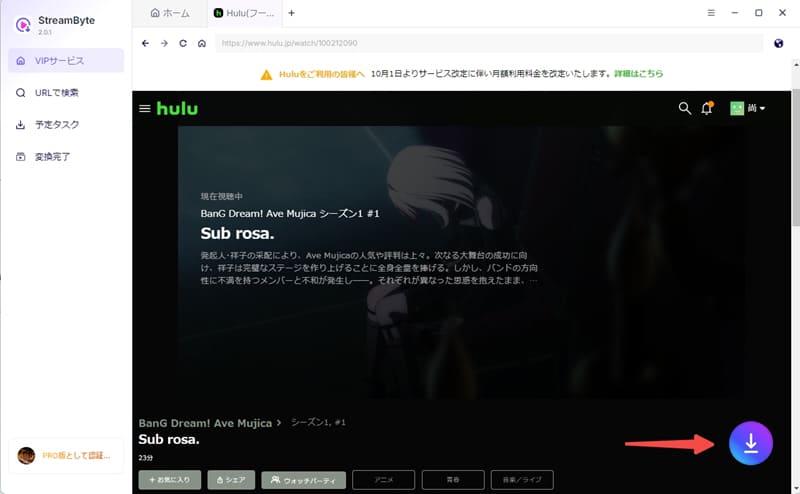
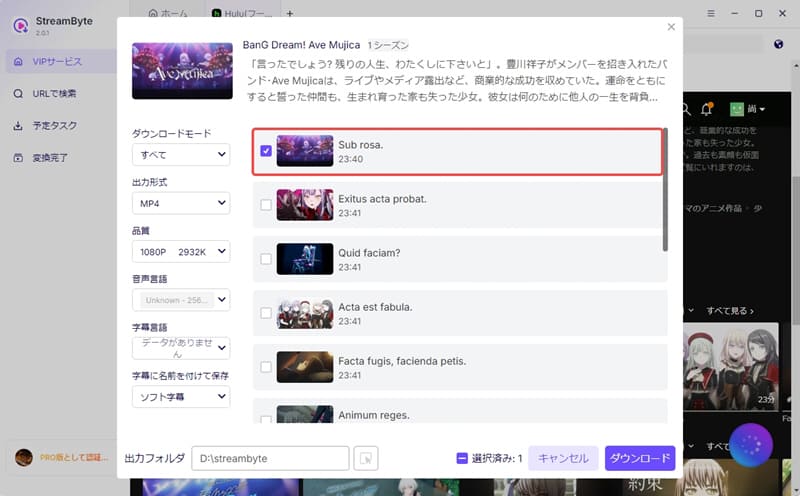
Step 4Then, adjust the settings such as output format, audio track, and subtitles as needed. Once the settings are complete, click in the bottom right corner of the screen."download"Click the button,Saving Hulu videosStarting now.
Step 5You can check the download progress in real time on the "Scheduled Tasks" tab. Once processing is complete, the video will automatically download."Conversion complete"You can switch to the tab and quickly view your saved Hulu videos.

"StreamByte for VideoIf you use "",DRM protection removalThis feature fundamentally avoids common recording problems such as the screen turning completely black. Furthermore, a major advantage is that it can save Hulu videos at up to 8 times the speed while maintaining a high level of image quality compared to conventional recording methods.
In my own testing, downloading the aforementioned 23-minute video took only about 2 minutes. This is a significant time saving compared to manually recording Hulu videos. Furthermore, the user interface is simple and easy to understand, making it user-friendly even without specialized knowledge. Because even beginners can quickly save Hulu videos, this software is highly recommended for first-time users.
100% safe, virus-free
100% safe, virus-free
OBS is a free and highly customizable screen recording software. It boasts a wealth of features and supports various plugins, allowing you to add and expand functionality according to your needs. Therefore, it's a strong option for recording content like Hulu.
However, OBS has many settings, and it may take some time to get used to how to use it. The official user guide is also simple, so it may feel a bit daunting for beginners. Also, be aware that Hulu videos are protected by DRM, so there is a possibility of problems such as the screen turning black during recording.
Now, let's look at how to record and save Hulu using OBS.
step 1Next, display the playback screen of the Hulu video you want to record. Then, launch OBS,"Screen capture"Add this as a source.
Step 2After adjusting the recording area and audio settings,"Start recording"Click the button to start recording the Hulu video.
Step 3If you want to end the recording,"Recording finished"Click the button. This completes the recording of the Hulu video, and the recorded file will be saved to the specified folder.

In addition to using the software mentioned above, you can also record and save Hulu content using Google Chrome extensions such as "Screenity" or "Screen Recorder." Installing these extensions allows you to easily record Hulu videos playing in your browser.
However, recording using extensions may result in unstable image quality, and due to DRM protection and browser specifications, the screen may turn completely black during recording. Therefore, if you want to save with stable image quality, StreamByte for VideoUsing specialized software such as "[software name]" is recommended.
Now, using "Screenity" as an example, I'll show you how to record and save Hulu using an extension.
step 1Install "Screenity" from the Google Web Store. Once the installation is complete, open the playback page of the Hulu video you want to record in your browser.
Step 2Then, launch "Screenity" from the browser extension icon and select the screen you want to record."Start Recording"Clicking the button will complete the recording preparation.
Step 3If you want to end the recording,"Finish Recording"Please click the button. Once recording stops, the saved video will be automatically saved to your computer.

Many modern smartphones, including Android and iPhones, come with a built-in screen recording function. Using this function, you can record and save Hulu videos without installing any additional apps. Here, we'll explain how to record Hulu using your smartphone's standard recording function, broken down by operating system.
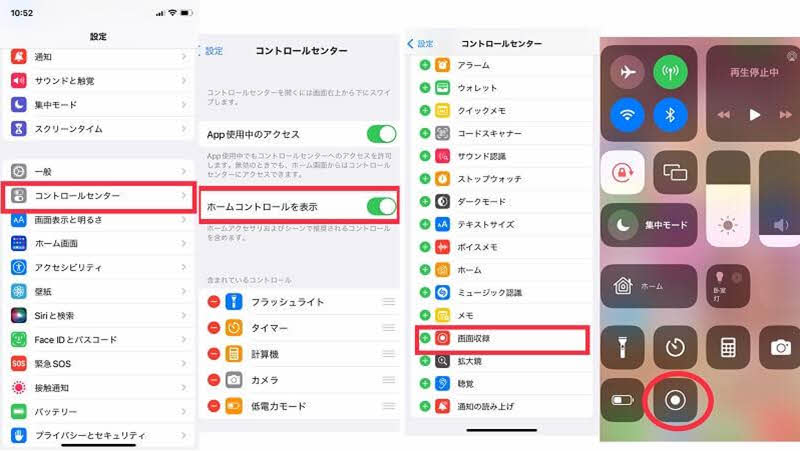
If you are using an iPhone, iOS comes standard withScreen RecordingThis feature allows you to record Hulu videos without any additional apps. Below, we'll explain the basic steps for recording and saving Hulu on your iPhone.
step 1From the iPhone home screen"Control Center"Open it,"Screen recording"We will add a feature.
Step 2Open the Hulu app and display the playback screen of the video you want to record. Then, open the Control Center,"Screen Recording" buttonTap it. Screen recording will begin after the 3-second countdown ends.
Step 3If you want to end the recording, click the button at the top of the screen.Recording status barTap or go back to Control CenterScreen recording buttonTap to stop. The recorded video will be saved automatically.
If you're using an Android smartphone, many devices running Android 11 or later come with a built-in "screen recording" function. Using this function, you can record Hulu videos without installing any additional apps.
Below, we will explain the basic steps for recording and saving Hulu on Android.
step 1First, launch the Hulu app and display the playback screen of the video you want to record.
Step 2Swipe down from the top of your smartphone screen to open the quick settings panel."Screen Record"Tap the icon. After a few seconds of countdown, screen recording will begin.
Step 3To end the recording, tap the stop button displayed on the screen. Once recording stops, the saved video will be automatically saved.
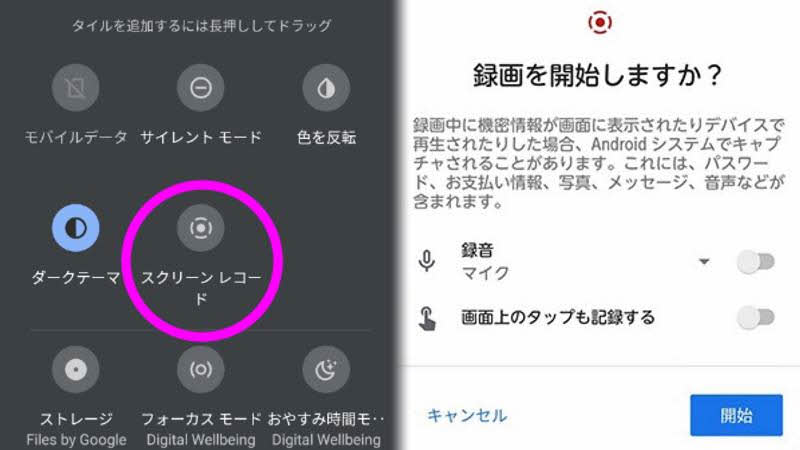
Points to note when recording Hulu using your smartphone's recording function
Because most Hulu content is DRM protected, using your smartphone's recording function is likely to result in a black screen. Furthermore, using your smartphone's recording function doesn't completely prevent the risk of Hulu detecting it. To avoid these problems and save Hulu videos more comfortably, you should use a device that supports DRM removal.StreamByte for VideoWe recommend using ".
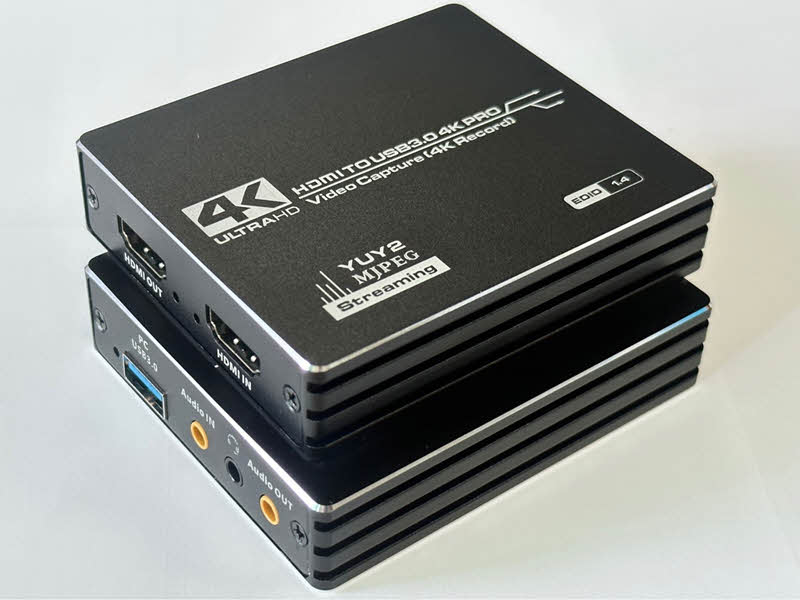
Besides using software or extensions, another method for recording and saving Hulu is to use a capture board. A capture board is an external device that can capture video signals from PCs, game consoles, smartphones, etc., and record them on a computer. Because it uses HDMI output to capture video, it is characterized by its ability to record with relatively stable image quality depending on the situation.
However, using a capture board requires the purchase of specialized equipment, and connection and setup can be somewhat complicated. Furthermore, depending on the equipment and environment used, DRM protection may prevent the video from displaying or recording, so caution is advised.
This guide will show you the basic steps for recording and saving Hulu content using a capture board.
step 1Next, connect the capture board between your computer and the playback device. Connect the playback device to the capture board using an HDMI cable, and then connect the capture board to your computer using a USB cable or similar.
Step 2Next, launch recording software that supports capture cards, such as OBS, and select the capture device as the video input source. Then, play Hulu and check if the video is displayed on the recording screen.
Step 3Then, click "Start Recording" in the recording software. To stop recording, click "Stop Recording," and the recorded Hulu video will be saved to your computer.
The act of recording Hulu videos is basicallyIt cannot be said to be legal.However, if you use it for personal learning or viewing purposes, you are usually not held liable for recording it.
On the other hand, if you redistribute recorded videos or use them for commercial purposes, you may be held legally liable for violating copyright law. Copyright regulations are very sensitive and laws vary from region to region, so when using them...Laws and regulations of your place of residenceIt is important to be sure to check this.
The main reason why recording Hulu on an iPhone results in a black screen is that many Hulu videos are protected by DRM. This protection technology restricts illegal copying through screen recording and capture, and even if you do record, only the audio may be recorded, with the video portion remaining black. If you want to save and watch Hulu videos offline, you can use dedicated video download software.StreamByte for VideoAnother method is to use "[...]".
Normally, even if you record Hulu videos using PC screen recording software or your smartphone's screen recording function, Hulu rarely notifies you of this operation. Furthermore, it's generally considered rare for recording activity to be automatically detected.
However, publishing or distributing recorded content online without permission may constitute a violation of copyright law. Therefore, it is important to manage recorded videos appropriately, such as limiting their use to personal viewing.
This article introduced various methods for recording and saving Hulu videos, from PCs to smartphones. However, Hulu content is often protected by DRM, and with regular screen recording, problems such as the screen turning black may occur during recording. To address such problems, dedicated video download software is available. StreamByte for VideoThis is a particularly effective solution.
"StreamByte for Video" is dedicated video download software that can process DRM-protected videos, thus avoiding the problem of the screen turning black while downloading Hulu videos.Save in a general-purpose format such as MP4.It is possible to do so. Furthermore,Lossless quality storageIt also supports [specific format/feature], allowing you to save videos in higher quality than typical screen recordings. The simple and easy-to-understand interface makes it appealing even for beginners, as it allows you to easily save Hulu videos.
"StreamByte for Video"forFree trialWe also offer this service, so if you're having trouble finding a way to record and save Hulu videos, please give it a try.
100% safe, virus-free
100% safe, virus-free
Born in Tokyo in 1997. After graduating from a university in London, he worked at a major IT media company, writing articles about video streaming services, video downloaders, and digital content.More than 3 years of experience in editing, proofreading, and writing directionThe articles he has worked on have garnered over 5 million page views, and he is well-known for producing content that is carefully crafted from the reader's perspective.
Currently, as an editor and web writer at StreamByte, he works on creating articles that help users solve their problems, focusing on information related to video streaming services and downloads, with the aim of being "user-oriented, easy to understand, and immediately useful."
Read more articles together



Experts in supporting offline viewing of streaming video services
Subscribe to StreamByteCopyright © 2026 StreamByte. All rights reserved.



Get the latest news, product upgrades, information, guides, discounts and more about StreamByte.
Please enter a valid email address.

A highly capable video downloader:
StreamByte for Video
Even beginners can rest assured! You can try saving videos for free first!







 English
  Japanese
  Chinese (traditional)
  German