
- Online video downloader
- Streaming Products
- BD-DVD products
- Store
- Useful Articles
- support
Share this article!


Amazon Prime Video is a popular video streaming service offering a vast library of movies and TV shows. However, for those with long commutes or who frequently travel by plane, the demand for offline playback functionality, which allows viewing without relying on an internet connection, is increasing. This article clearly explains how to play Amazon Prime Video content offline and highlights important points to keep in mind. Furthermore, we'll introduce a trick to bypass the official offline playback function and freely play videos offline. Please read to the end.

Related Posts:
The offline playback feature is one of the convenient features offered by the official Amazon Prime Video app. By downloading videos using the official app, you can play saved Amazon Prime content offline, which is extremely convenient for people with long commutes or those who travel frequently by plane. This allows you to enjoy your favorite videos anytime while saving on data usage. However, it's important to note that there are some limitations to Amazon Prime's offline playback feature.
Restrictions on Amazon Prime's offline playback feature
The procedure for offline playback of Amazon Prime Video using its official features varies depending on the device you are using. Here, we will explain the specific methods for each device in detail.
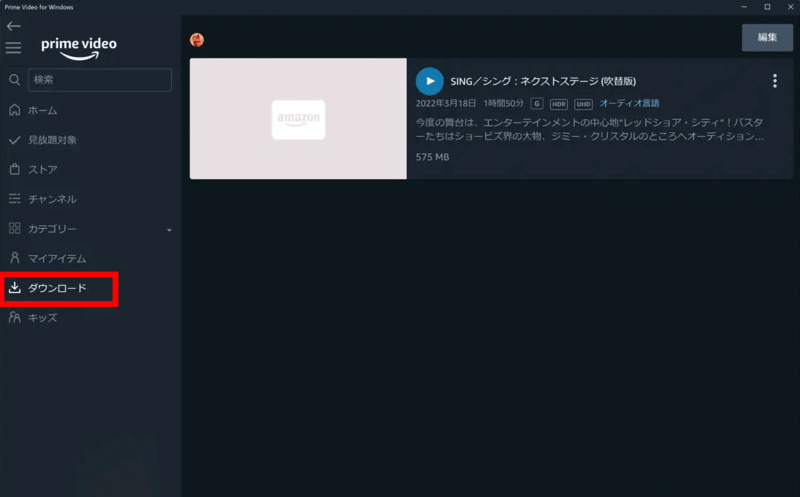
If you want to play Amazon Prime Video offline on your computer, first install the official Amazon Prime Video app. The app can be obtained from the official website or the Microsoft Store. Note that to use it...Windows 10 and laterormacOS 11.4 Big Sur and laterSince a specific environment is required, please check in advance whether your computer is compatible.
Once you're ready, you can download Amazon Prime videos to your computer and play them offline by following these steps.
step 1Launch the installed Amazon Prime Video app and log in with your Amazon account.
Step 2, on the left side of the app screenSearch barFind the artwork you want to download and open its page."Download" buttonClick here. Depending on the work, you may be able to select the video quality and audio language when downloading.
Step 3Once the download is complete, the video will appear in the left-hand menu."Download" tabYou can check this there. By selecting the title you want to watch and playing it, you can play Amazon Prime offline even in environments without an internet connection.
To play Amazon Prime Video offline on your smartphone, first download and install the Amazon Prime Video app from Google Play or the App Store.iOS 16 or later,orAndroid 12 and laterThis feature is only available on certain devices, so please check your device's OS version beforehand.
You can play Amazon Prime offline on your smartphone by following these steps.
step 1Open the Amazon Prime Video app and use your Amazon account.Log inI will.
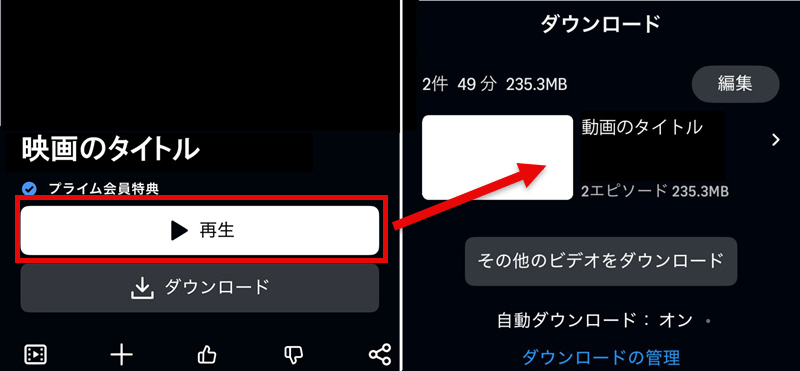
Step 2On the details page of the content you want to watch.Tap "Download"Yes, in the case of a series,"Download Season XX" By selecting this option, you can download the content on a season-by-season basis.
Step 3The downloaded content is located at the bottom of the app.Download iconTap,"download" You can check this in the tabs. Now you can immediately enjoy offline playback of Amazon Prime Video, even without an internet connection.
The above explains how to play Amazon Prime offline using the official features. However, the official offline playback feature has limitations.Viewing period, playback period, and device compatibility restrictionsThere are various restrictions, such as those mentioned above. Therefore, even if you want to "watch anytime, anywhere freely," you will often find yourself inconvenient.
Therefore, for those who want to bypass Amazon Prime's offline playback restrictions, we recommend the dedicated video downloader, "StreamByte for VideoThis software allows you toSave Amazon Prime videos in a general format such as MP4.This will allow you to freely move and manage your saved videos without worrying about the various restrictions on offline playback on Amazon Prime. Furthermore, once content is saved, you can watch it without worrying about expiration dates.

StreamByte for Video
This is a video downloader that supports major streaming services such as Netflix, Amazon Prime, and YouTube. You can save and enjoy your favorite videos with high image quality up to 8K and Dolby Atmos audio.
"Why we recommend StreamByte for Video"
HereStreamByte for VideoThis guide explains how to download Amazon Prime videos for offline playback using [this method].
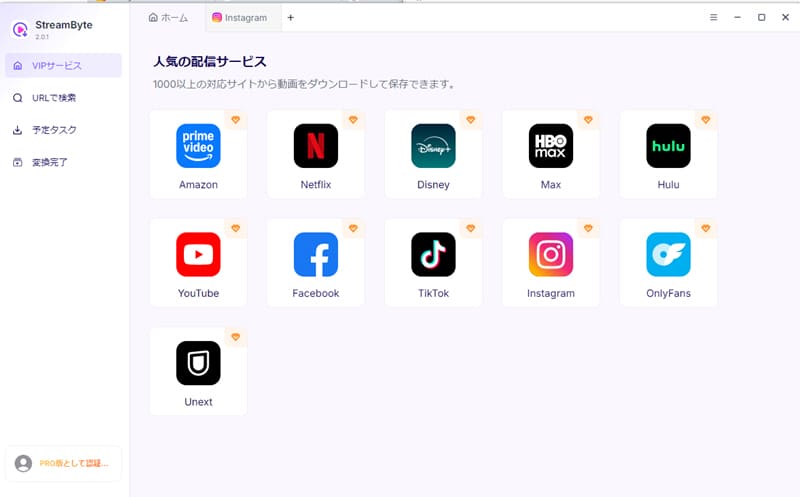
step 1"StreamByte for Video"RegistrationThen, major video streaming services, including Amazon Prime Video, will be displayed on the main screen. Select "Amazon Prime Video" from the list.
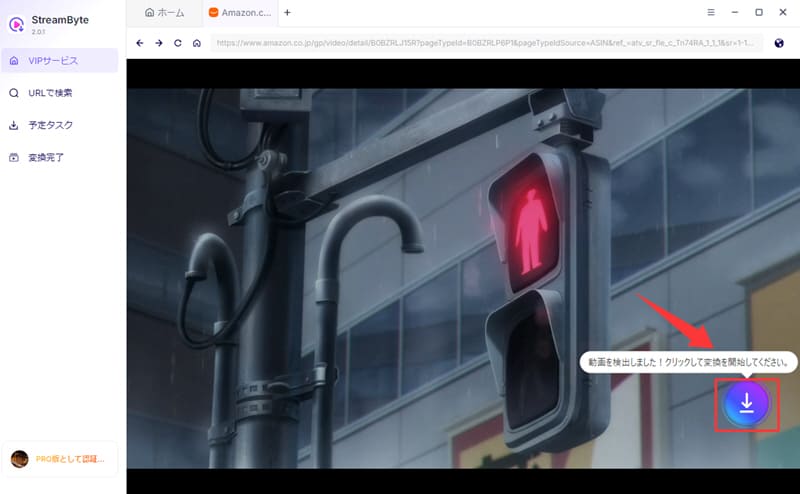
Step 2After logging in to your Amazon account, open the details page of the video you want to download, and the software will automatically analyze the video information. Once the analysis is complete, you can add the video to your download list by clicking the download button that appears.
Step 3Once the video is added to the download list, you can change various settings such as output format, audio track, and subtitles. You can also freely change the download location of the video to suit your needs.
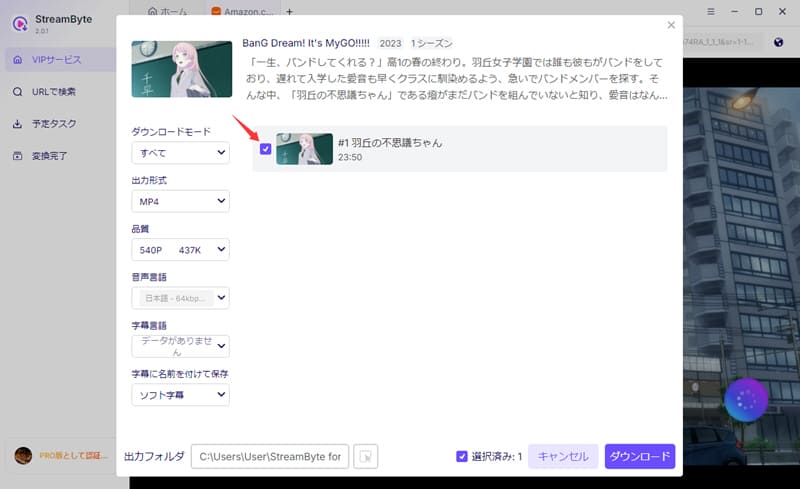
Step 4Finally, clicking the "Download" button will start the video download. You can check the progress on the "Scheduled Tasks" screen, and then...Save Amazon Prime Video permanently to your computer.can.
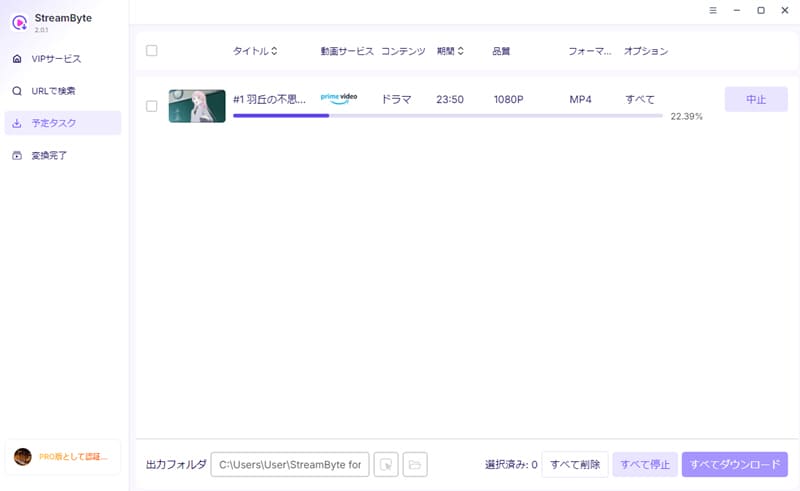
"StreamByte for VideoIf you use ", you can get powerfulDRM protection removal functionThis allows you to save Amazon Prime Video content. Saved videos can be freely moved and managed, and can be played for free on various devices such as smartphones and tablets. Because it maintains maximum image quality, even users who prioritize picture quality can enjoy offline playback comfortably. Furthermore, the user interface is simple and easy to understand, making it easy for first-time users to master.
100% safe, virus-free
100% safe, virus-free
The inability to play content offline on Amazon Prime Video is a problem many users experience at some point. In fact, there isn't just one cause; several restrictions and conditions are involved. Here, we'll clearly explain some of the most common causes.
Videos downloaded from Amazon Prime Video must be started within 30 days of download due to copyright protection. Furthermore, this deadline may vary depending on the title. Because the offline viewing period differs for each title, it's recommended to start watching videos you want to see as soon as possible.
If you want to permanently save Amazon Prime videos and play them offline anytime, anywhere, you need a device that supports DRM removal. StreamByte for VideoWe recommend using [this method] to download it.
How long does it take to download videos from Amazon Prime Video?Video quality, playback time, network environmentThis varies depending on various factors. Therefore, it is not possible to give an exact time. Under typical network conditions, the download will be completed in a few minutes to a few tens of minutes, but this can vary greatly depending on the image quality settings and network speed.
When you turn on airplane mode, all communication functions, including calls, emails, and Wi-Fi, are disabled. Therefore, you cannot connect to the internet, but you can still play Amazon Prime Video videos that you have downloaded to your device beforehand. In other words, if you download videos before boarding, you can watch them offline even while in airplane mode.
Amazon PrimeDownloadData usageThis mainly depends on the video quality. Generally, the higher the quality, the more power is needed.Data usageThe amount of data used will also increase. For example, with data saver settings, it consumes about 0.14GB per hour, with medium quality it consumes about 0.5GB, with high quality it consumes about 0.8GB, and with highest quality it consumes about 1.4GB. Therefore, if you want to save mobile data, it is recommended to lower the image quality when downloading.
This article explained Amazon Prime's offline playback feature and how to use it. It also revealed that there are some limitations, so we will discuss how to address them.Remove the offline playback restriction on Amazon Prime.As another possible method, I also introduced "StreamByte for Video".
This software allows you to remove DRM protection from Amazon Prime Video and bypass various offline playback restrictions. Furthermore, it allows you to save videos in common formats such as MP4, making permanent storage, transfer, and management between devices easy. The user interface is simple and intuitive, making it user-friendly even for beginners.
"StreamByte for Video"forFree trialIt is also available,Play Amazon Prime offlineIf you're interested, I recommend giving it a try first.
100% safe, virus-free
100% safe, virus-free
Born in Tokyo in 1997. After graduating from a university in London, he worked at a major IT media company, writing articles about video streaming services, video downloaders, and digital content.More than 3 years of experience in editing, proofreading, and writing directionThe articles he has worked on have garnered over 5 million page views, and he is well-known for producing content that is carefully crafted from the reader's perspective.
Currently, as an editor and web writer at StreamByte, he works on creating articles that help users solve their problems, focusing on information related to video streaming services and downloads, with the aim of being "user-oriented, easy to understand, and immediately useful."
Read more articles together

Experts in supporting offline viewing of streaming video services
Subscribe to StreamByteCopyright © 2026 StreamByte. All rights reserved.



Get the latest news, product upgrades, information, guides, discounts and more about StreamByte.
Please enter a valid email address.

A highly capable video downloader:
StreamByte for Video
Even beginners can rest assured! You can try saving videos for free first!







 English
  Japanese
  Chinese (traditional)
  German