
- Online video downloader
- Streaming Products
- BD-DVD products
- Store
- Useful Articles
- support
Share this article!


Are you having trouble saving or downloading embedded videos? The truth is, embedded videos from YouTube, Twitter, Vimeo, and other platforms work differently than regular videos, so using the wrong method often prevents you from saving them.
This article provides a clear explanation of how to save and download embedded videos on PCs (Windows and Mac) and smartphones (iPhone and Android). It covers everything from free methods to tips for saving videos in high quality, as well as common download problems and solutions, making it easy for beginners to follow along.

Related Posts:
What is an embedded video?This refers to videos uploaded to external platforms such as YouTube and Vimeo that can be embedded and played within a webpage. While they appear as videos within the site, they are actually loaded from an external server, and therefore, they often cannot be downloaded directly like regular videos.
How to save embedded videosThere are two main methods for saving videos: "obtaining the video URL and downloading it" and "saving it by screen recording." If you can obtain the URL, you can save it efficiently while maintaining high quality. However, if you cannot obtain the URL or if the video has restrictions, saving it by screen recording becomes a more practical method. In other words, the first important step is to determine whether or not you can obtain the URL.Several methods for saving embedded videos and their main featuresI have summarized them below.
| How to save embedded videos / Tools | success rate | Video quality | Features |
| PC software | high | high | The most stable and highest quality way to save. |
| Online site | Medium | Medium | It's easy to use, but there are limitations on the websites it supports. |
| Browser extensions | Medium | Medium | Sometimes it can be saved with one click. |
| Developer Tools | Medium | high | If you can obtain the URL, you can save it in high quality. |
| Screen recording (PC/smartphone) | high | low | It's reliable, but time-consuming and requires effort. |
| Browser only | low | Medium | Valid only on specific sites |
Generally, if you can obtain the URL and download it, thenStreamByte for VideoUsing dedicated PC software like the one mentioned above is the most efficient and highest quality way to save the video, so it's highly recommended. Only consider methods like recording if obtaining the URL is difficult.
If you want to reliably save and download embedded videos in high quality, using dedicated PC software is the best option. A major advantage is that it can reliably save videos that browsers and free tools cannot handle.
"StreamByte for Video" is available on major streaming platforms such as Netflix, Amazon Prime, Disney+, YouTube, HBO, Hulu, and Pornhub.Download videos from streaming servicesIt is a high-performance embedded video downloader that supports. Even in an environment with an unstable Internet connection, you can use the high-speed download function (up to 8x speed) to pre-save embedded videos and play them without stress. It supports high-quality images up to 8K and lossless sound quality, and can be saved in MP4, MKV, and MOV formats without degradation.
In addition, it supports the selection and retention of multilingual audio tracks and subtitles, allowing you to use it flexibly according to your viewing style. It also has a function that allows you to search and download directly from the official web player, making it easy to use. It also supports saving embedded videos with DRM protection, so you can enjoy your favorite content freely at any time.
Compatible with both Windows and MacStreamByte for VideoDownload now and get the best viewing experience!

StreamByte for Video
This is a video downloader that supports major streaming services such as Netflix, Amazon Prime, and YouTube. You can save and enjoy your favorite videos with high image quality up to 8K and Dolby Atmos audio.
What makes StreamByte for Video great?
Step 1: Choose a video service and log in
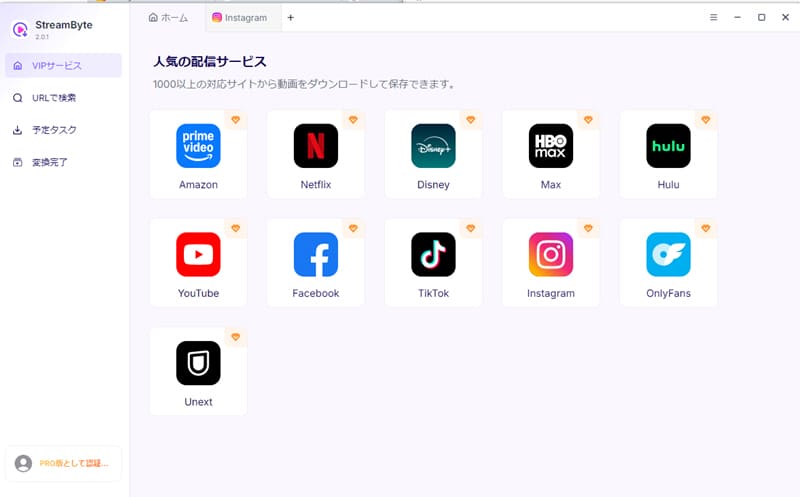
Once you log in to StreamByte for Video, the main interface will display several popular streaming services, including Amazon Prime, Netflix, Disney+, HBO, Hulu, YouTube, etc. Select the service from which you want to download embedded videos.
Alternatively, you can paste the URL of the embedded video directly into this screen to search for it. Some sites require you to log in to your account to get the video.
Step 2: Select the video you want to download
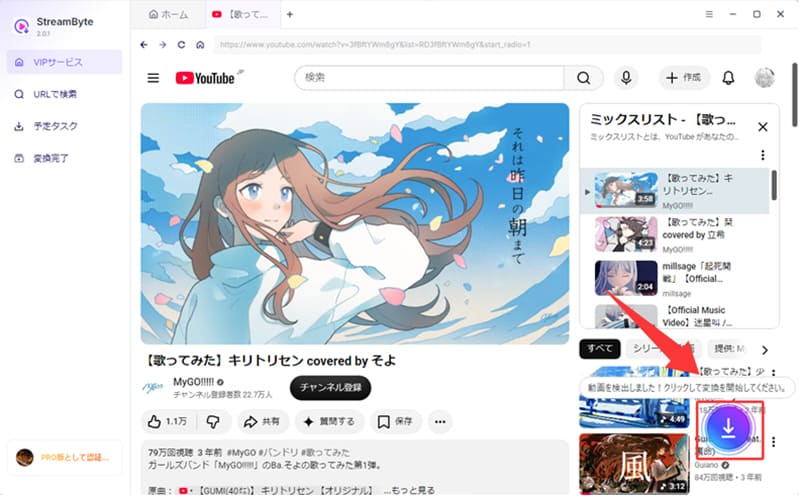
Once you find the embedded video you want to download, click the blue download icon and select the episode of the embedded video you want to download.
Step 3. Adjust output settings
By default, the software will select the video with audio and subtitles, output format, subtitles, etc. You can change these settings to suit your preferences.
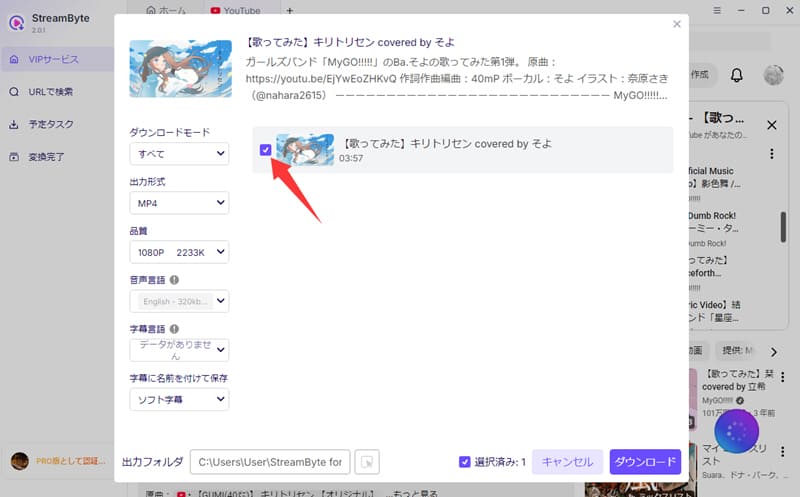
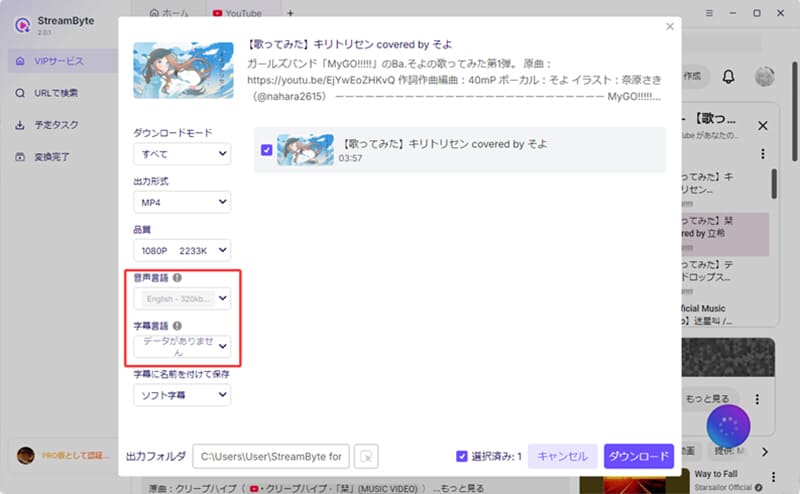
Additionally, you can also set the audio and subtitle language and the output folder.
Step 4: Download the video
Once you have selected your video and settings, click the blue "Download" button in the bottom right corner to begin downloading your embedded video. You can follow the download progress on screen.
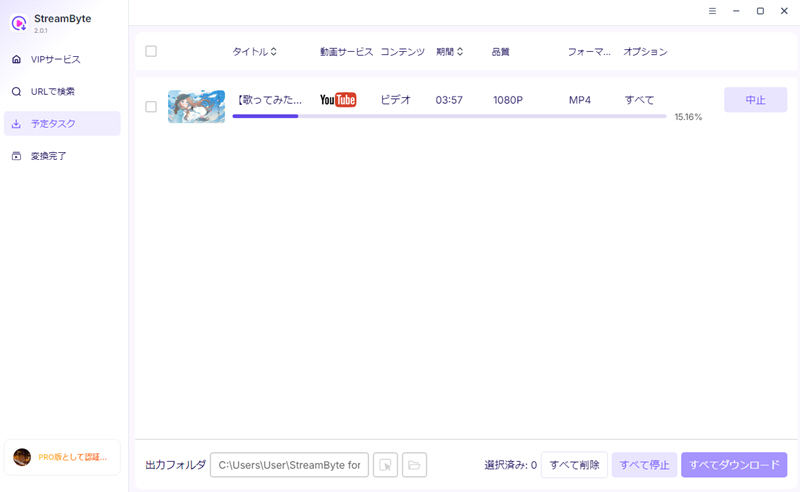
"StreamByte for Video" is a highly functional embedded video downloader that supports major streaming services including Netflix, Amazon Prime, Disney+, YouTube, HBO, Hulu, Pornhub, etc.
The operation screen is simple and intuitive, and even beginners can use it without hesitation. You can comfortably save and play videos with high image quality and sound quality. In addition, it supports DRM-protected content, so it can be widely used for general online videos.
Download the free trial now and see for yourself how convenient and useful it is.
100% safe, virus-free
100% safe, virus-free
Related Posts:
"I don't want to install any more software on my computer, but I still want to download embedded videos..." Don't worry!
In such cases, you can also use a browser or online tools to download and save embedded videos for free. The advantage is that it's easy to use and you can try it right away.
However, these methods have limitations in the types of videos and features they can handle, and downloads may not be possible from some websites. Therefore, it is important to use them only as a temporary solution and choose the appropriate method depending on your needs.
Below, we'll introduce some common methods for saving embedded videos that don't require any software. If you're interested, please continue reading!
When watching embedded videos online, have you ever been in a place without Wi-Fi or an unstable network, causing the embedded video to be interrupted, or wanted to save your favorite embedded video? Indeed, some services such as Amazon Prime Video have a download function, but the saved embedded video can only be viewed within the app, and there is a storage period limit. Furthermore, if the video ends distribution, expires, or is deleted, you will no longer be able to watch it.
So, this time we will introduce you to a website where you can easily download embedded videos. Please check it out!
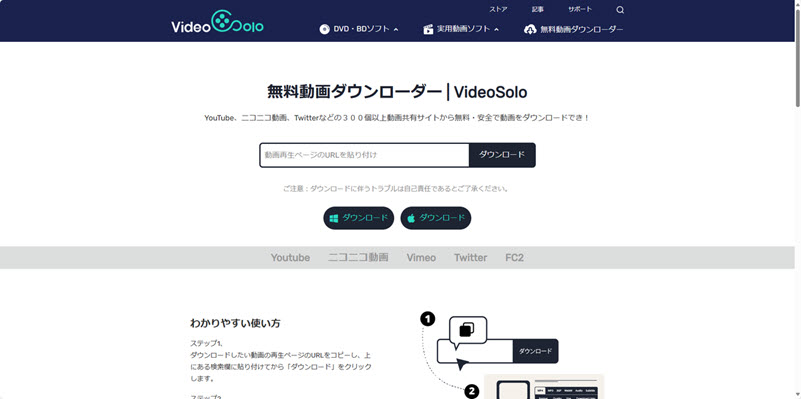
"VideoSolo Free Video Downloader"
Official website: https://www.videosolo.com/ja/online-video-downloader/
"VideoSolo Free Video Downloader" Simply copy and paste the URL of the embedded video to instantly save the video you want!
This site supports over 300 video sharing sites, including YouTube, Niconico Video, Twitter, and Pornhub, and allows you to download videos for free and safely. Simply paste the URL of the embedded video to save it, and it is compatible with major browsers such as Google Chrome, Firefox, and Safari.
In addition, you can download not only videos but also audio and subtitles, and you can freely choose the image quality and format. It is completely free and there is no need to worry about advertisements or viruses, so you can use it with confidence.
Here's how to save embedded videos using your browser's developer tools. Follow the steps to give it a try.
Step 1: Open the page where the video is displayed
Open the webpage with the embedded video you want to save.
Step 2: Open Developer Tools
please note:
Step 3: Select the Network tab
Click the Network tab at the top of the Developer Tools.
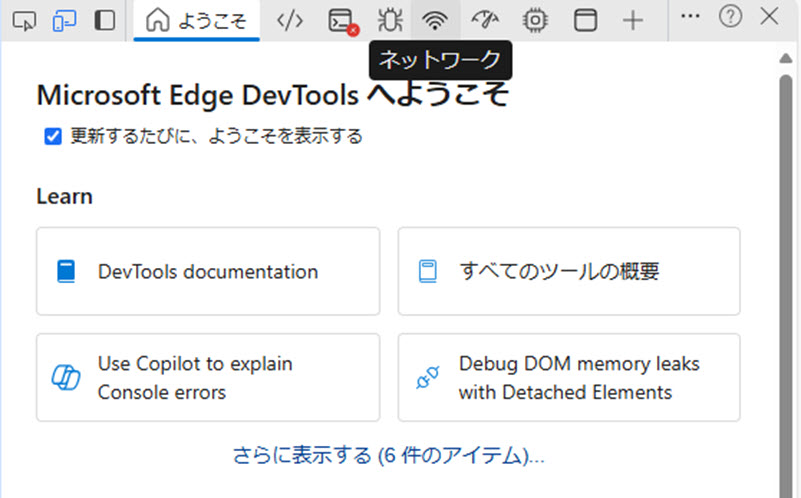
Step 4: Play the video
When you play an embedded video, you'll see various network requests appear in the developer tools.
Step 5: Find your video files
Use the filter function to type "media" or "video" to filter for embedded video files. Generally, embedded video files have file extensions such as .mp4, .webm, .m3u8, etc.
Step 6: Save the video file
Right-click on the embedded video file you found and select "Open in new tab" or "Copy link address". If the embedded video opens in a new tab, right-click on it and select "Save video as".
please note:
Using the developer tools makes it easy to save many embedded videos, but please be sure to follow the terms of use and use them appropriately!
PC users can record and download embedded videos using standard computer functions.
How to record and download embedded videos on Windows
Windows comes with a built-in recording feature called "Game Bar." You can use this feature to easily record and download embedded videos.
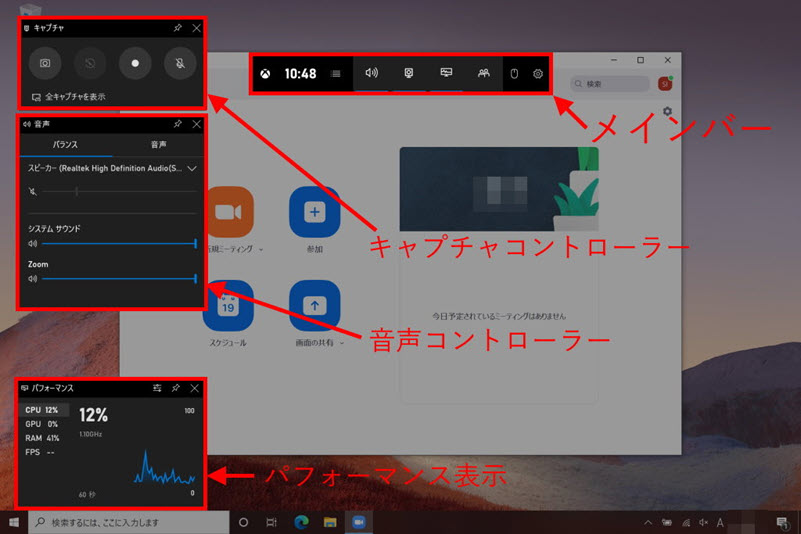
To download embedded videos using your computer's standard recording function, follow these steps:
step 1Go to Settings > Gaming > Game Bar and turn on "Use Game Bar to record game clips, screenshots, and broadcasts".
Step 2Play the embedded video and press [Win+G] to open the Game Bar. Click the "Start Recording" button or press [Win+Alt+R] to start recording.
Step 3To end the recording, press [Win+Alt+R] again. The recorded embedded video will be saved in the [C:\username\videocapture] folder.
How to Record and Download Embedded Videos on Mac
Mac has a built-in recording function called "QuickTime Player." Using QuickTime, you can easily record and download embedded videos.
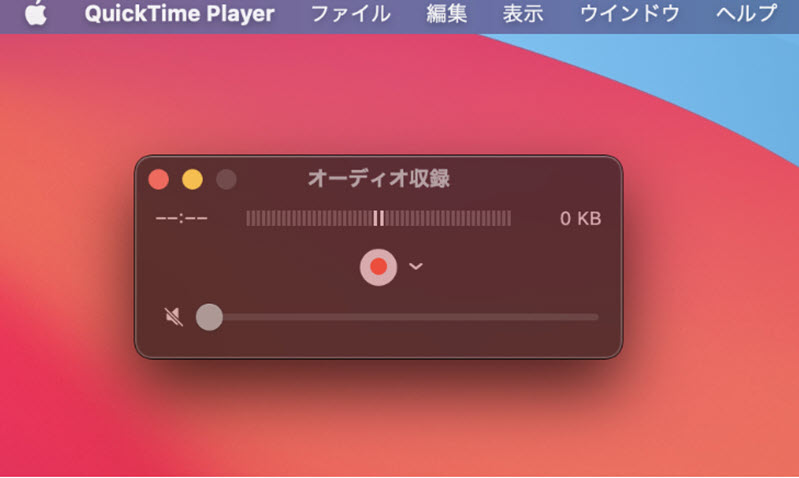
Here are the steps to download embedded videos using Mac's built-in recording feature:
step 1Open QuickTime Player. Open "QuickTime Player" from the Applications folder.
Step 2To start screen recording, select "New Screen Recording" from the "File" menu. Click the record button, select the playback area for the embedded video, and start recording.
Step 3Then, end the recording. Once the embedded video has finished playing, click the stop button in the QuickTime menu bar. Save the recorded video to the location where you want to save it. If none of the standard functions work, try using dedicated recording software.VideoSolo Screen RecorderPlease consider using ".
If you want to save embedded videos on your smartphone, the easiest way is to use your phone's screen recording function. Android and iPhones have a built-in screen recording feature. Try the following steps:
For Android
step 1Swipe down on the notification bar,Screen Recording" icon.
Step 2The system will then start recording and play the video. When finished, it will stop recording and save the video.
For iPhone
step 1From "Settings" → "Control Center"Screen Recording" will be added.
Step 2Open the Control Center and tap the record button to start recording.
If you are not satisfied with the recording function of your smartphone or if the recording does not work properly, we recommend downloading the video on your PC. This is where the powerful embedded video download tool "StreamByte for Video"is!
This software allows you to easily download embedded videos from major streaming services and watch them offline. Give it a try!
100% safe, virus-free
100% safe, virus-free
The extension works directly within your browser without installing any additional software, making it easy to save embedded videos.
With this extension, you can easily save embedded videos that are usually difficult to download. Below are some of the most popular extensions:
Video Download Helper: A popular extension that supports a wide range of streaming sites and allows you to easily download embedded videos.

Using the Chrome/FireFox extension is very easy. First, install the extension on Chrome/FireFox. After installation, open a video site and play the video you want to download. When you move the mouse over the embedded video, the extension icon will appear and the download option will appear. Just select the resolution and format you want and start downloading. With simple operations, you can easily save videos.
To sum up, the extension is available in a free version, but more advanced features and higher quality downloads may require a paid version.
If you want to save an embedded video without using any software, the easiest method is often to save it directly using your browser's built-in functions. Specifically, if you right-click on the video and an option like "Save video as" appears, you can download it directly.
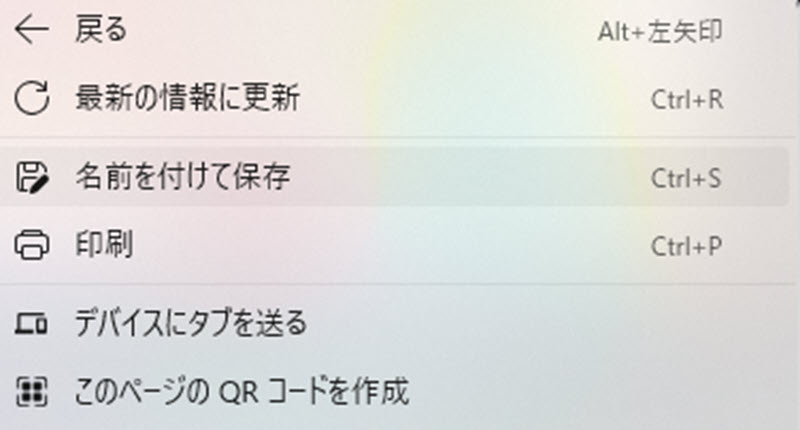
However, this method is only usable for a limited number of videos, and in most cases, the save option itself does not appear, or the video cannot be downloaded properly. In particular, this method is almost impossible to use for streaming videos or videos that are protected.
100% safe, virus-free
100% safe, virus-free
We have received many questions from users who want to download and save embedded videos, so we have compiled some answers to help you answer those questions.
Removing DRM protection from copyrighted content and downloading it may be a violation of copyright law.
However, under current Japanese law, saving videos for personal use within the scope of an individual is not subject to criminal penalties, even if it constitutes illegal downloading. On the other hand, if you use downloaded videos for commercial or business purposes, share them with third parties, or re-upload them to social media, you may be subject to criminal penalties for copyright infringement.
As copyright laws and regulations differ in each country, please check the latest laws and regulations and the terms of use of the streaming service before using the service, and act at your own risk.
In short, downloading an embedded video will not directly notify the uploader or website administrator. Most embedded video players do not have notification features regarding video viewing or saving. However, website analytics tools may record information indicating that a video was played on a specific page. Since the act of downloading itself is not notified, there's no need to worry excessively if it's for personal use.
An embedded video is a video that is directly embedded in a web page or blog. You can display the video on a site using the "embedded code" provided by video services such as YouTube and Vimeo. It is also possible to download embedded videos. However, some sites have restrictions and you may not be able to save them directly. In that case, please use the "StreamByte for VideoUsing dedicated software such as " may result in more stable storage.
The easiest way to find the URL of an embedded video is to right-click on the video playback screen and select "Copy URL" from the menu that appears.
If the right-click menu does not appear or the "Copy URL" option is not available, you can find the URL of the video by directly accessing the page of the platform where the original video was posted (such as YouTube or Vimeo).
In many cases, embedded videos cannot be downloaded due to restrictions imposed by the distribution site or technical specifications. Most video services restrict downloading of embedded videos to prevent copyright protection and unauthorized use of content. Some videos are also protected by DRM (Digital Rights Management), which makes them impossible to download. In addition, if the embedded video is streamed in a certain format, it may not be possible to save it using the standard functions of your browser.
There are various methods for saving and downloading embedded videos, including PC software, browsers, online sites, and screen recording, but each method differs in the types of videos it can handle and the features it offers. This article provides a detailed explanation of various methods for downloading embedded videos, from free methods to those that allow you to save videos in high quality, tailored to your specific needs.
A free trial version is currently available, so we recommend trying it out first to see if you can actually save embedded videos.
100% safe, virus-free
100% safe, virus-free
Born in Tokyo in 1997. After graduating from a university in London, he worked at a major IT media company, writing articles about video streaming services, video downloaders, and digital content.More than 3 years of experience in editing, proofreading, and writing directionThe articles he has worked on have garnered over 5 million page views, and he is well-known for producing content that is carefully crafted from the reader's perspective.
Currently, as an editor and web writer at StreamByte, he works on creating articles that help users solve their problems, focusing on information related to video streaming services and downloads, with the aim of being "user-oriented, easy to understand, and immediately useful."
Read more articles together



Experts in supporting offline viewing of streaming video services
Subscribe to StreamByteCopyright © 2026 StreamByte. All rights reserved.



Get the latest news, product upgrades, information, guides, discounts and more about StreamByte.
Please enter a valid email address.

A highly capable video downloader:
StreamByte for Video
Even beginners can rest assured! You can try saving videos for free first!







 English
  Japanese
  Chinese (traditional)
  German