
- Online video downloader
- Streaming Products
- BD-DVD products
- Store
- Useful Articles
- support
Share this article!


Have you ever wanted to rewatch a video you found on YouTube before your commute, while on a business trip, or in a place with an unstable internet connection? Saving it to your computer makes it easier to view on a larger screen and organize it for creating documents or studying.
There are several ways to save YouTube videos to your PC. Some methods allow you to save them as standard video files, while others involve temporary saving via YouTube Premium or screen recording. Each method differs in terms of usability, file format, image quality, and security, so it's important to choose the one that best suits your needs.
This article compares five methods for downloading and saving YouTube videos to your computer, clearly explaining each method's procedure, features, and points to note. If you're a Windows or Mac user and want to save your favorite YouTube videos, be sure to check this out.
Related Posts:
There are five main ways to save YouTube videos to your computer: "YouTube Premium," "dedicated video downloaders," "offline video saving websites," "VLC media player," and "screen recording."
The author actually tested each YouTube video saving method based on the following testing environment. First, let's check the comparison table to see which method suits you best.
About the actual device testing environment
| Comparison items | Video download software | VLC Media Player | Online video storage site | Standard recording function for PC | YouTube Official |
| YouTube Premium | no need | no need | no need | no need | Required |
| Storage format | MP4/MKV/MOV/MP3 etc. available | Few options | MP4/MKV etc. can be selected | Few options | Only available on the official YouTube service |
| Picture quality and sound quality | Up to 4K/1080p, varies depending on the video. | Deterioration present, selection unavailable. | Low quality only | Dependent on internet connection and PC performance; degradation may occur. | Varies depending on the video. |
| Save subtitles | Supports and offers three subtitle modes. | Not supported | Generally, most are not supported. | Recording is possible when the screen is displayed. | correspondence |
| Storage time | Approximately 3 minutes | Approximately 8 minutes | Approximately 6 minutes | Same playback time as the video | Approximately 2 minutes |
| advertisement | none | none | Pop-up ads included | none | No ads with paid plans |
| Operability | easy | complicated | easy | Somewhat complex | easy |
| Is it free to use? | A free version is available, and you can save up to 3 videos per day. | free | Free, high quality is paid. | free | A paid plan is required. |
I want to save YouTube videos to my PC as video files such as MP4, MOV, or MKV.In that case, dedicated video download software like "StreamByte for Video" is easy to use. You can search for and save videos directly from the built-in web player, or simply paste the video URL to download it. It's easy to choose the save format and quality, making it user-friendly even for beginners.
I want to watch offline safely using only official features.In that case, YouTube Premium is suitable. However, saved videos cannot be freely moved as regular video files; they are temporarily stored within your YouTube account.
I want to try just one without installing any software.In that case, online file saving sites like "SaveFrom.Net" are also an option. However, they are prone to advertisements, redirection to other pages, and image quality limitations, so they are not ideal for those who prioritize security.
While you can save YouTube videos using the standard recording function on Windows or Mac, the saving time is the same as the video's playback time, and it consumes a large amount of storage space, so it's not recommended for saving long videos.
The best option is to use dedicated YouTube video downloader for PC, which allows you to save your favorite YouTube videos to your computer safely and securely without any loss.
"StreamByte for Video" is for those who want to save YouTube videos to their PCThe best YouTube downloaderIt supports high-speed saving at up to 8x speed.You can save the content in advance and watch it comfortably even in places with unstable communication environment.In addition, it supports 8K image quality, multilingual subtitles, MP4/MKV format output,DRM protection removalIt also comes with basic functions such as:
It also supports over 1,000 video streaming and sharing sites, including YouTube, Netflix, and Amazon Prime.Manage all your videos in one placecan.
Compatible with Windows and Mac. Try it for free now and get the best way to save YouTube videos to your PC.

StreamByte for Video
This is a video downloader that supports major streaming services such as Netflix, Amazon Prime, and YouTube. You can save and enjoy your favorite videos with high image quality up to 8K and Dolby Atmos audio.
What makes StreamByte for Video great?
"StreamByte for Video" allows you to download YouTube videos to your computer in just 4 steps!
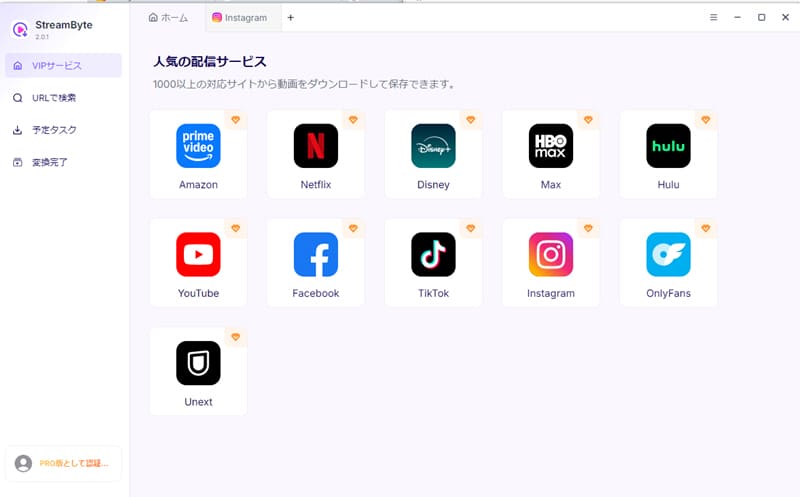
Step 1: Choose a video streaming/sharing service and log in
After you log in to StreamByte for Video, you will see several popular streaming video services on the main interface, including Amazon Prime, Netflix, Disney+, HBO, Hulu, YouTube, Pornhub, etc. In this case, please select YouTube on your computer.
Step 2: Select the YouTube video you want to download to your PC
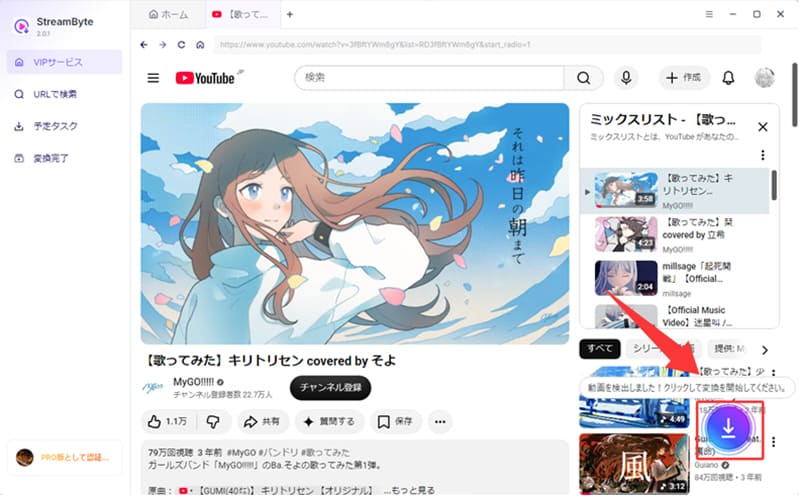
Once you find the YouTube video you want to save on your PC screen, click the download icon and select the episode of the YouTube video you want to save.
Tip
You can also save videos to your computer by simply copying the URL of the YouTube video playback screen and pasting it into the search box on the "StreamByte for Video" home screen.
Step 3: Adjust YouTube video output settings
By default, this software will select video with audio and subtitles, MP4 output format, soft subtitles, etc. You can change these settings to suit your preferences when saving YouTube videos to your PC.
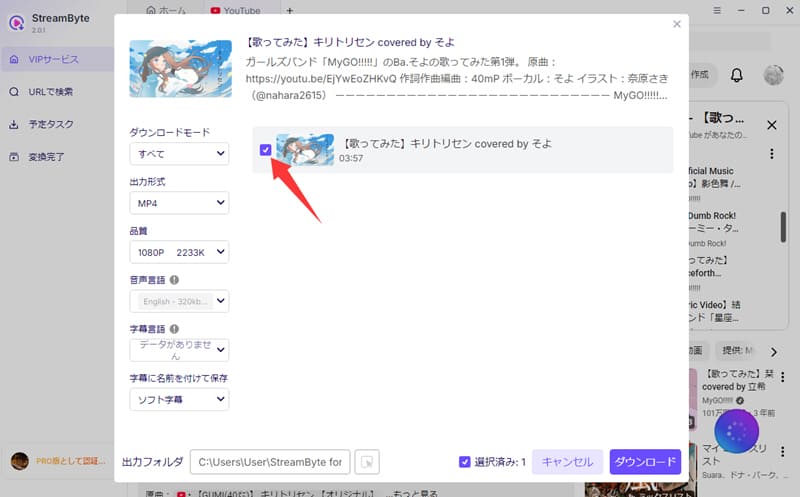
Additionally, you can also set the audio and subtitle language and the output folder.
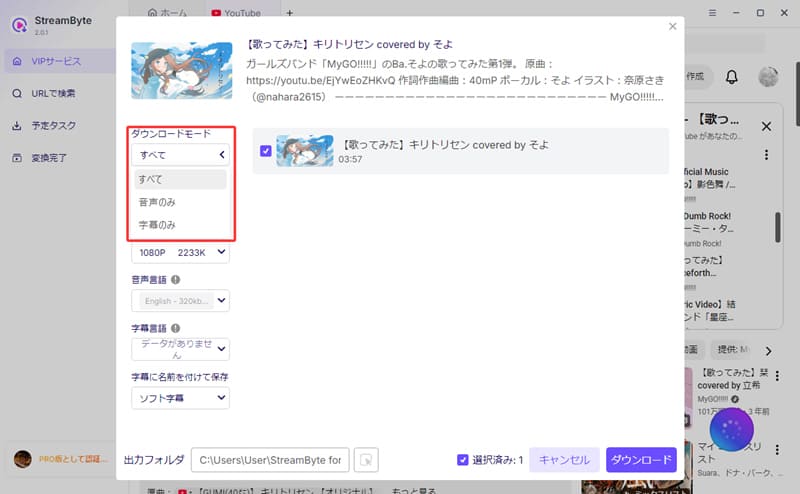
Step 4 Download YouTube videos
Once you have selected your video and settings, click the blue "Download allClick the " button to start downloading the YouTube video. You can check the download progress or saving status on your PC screen.

"StreamByte for VideoThis is an easy-to-use method for those who want to save YouTube videos to their PC in video formats such as MP4/MKV/MOV. A major advantage is that it has no ads and allows you to easily choose the save format and quality. In particular, it allows you to download long videos or multiple videos at once, enabling efficient YouTube video saving. It features an intuitive and user-friendly interface, making it easy for even beginners to operate.
First, try the free trial version of the software to check if you can save YouTube videos and to see how easy it is to use.
100% safe, virus-free
100% safe, virus-free
VLC Media Player is a popular free video player for PCs. It's compatible with a wide range of operating systems, including Windows, Mac, and Linux, and is completely free to use with no ads. Not only can it play various audio and video formats, but it can also download YouTube videos to your PC by pasting a URL.
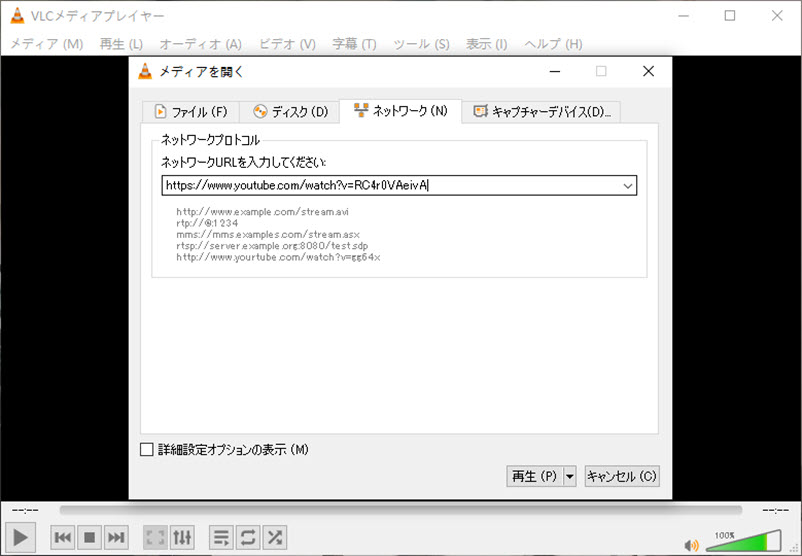
This guide provides a detailed explanation of how to save YouTube videos using VLC Media Player on Windows/Mac.
step 1, Launch "VLC Media Player," click "Media" in the upper left corner, and select "Convert/Save."
Step 2, A pop-up window will appear. Click "Network" and paste the link of the YouTube video you want to save to your PC.
Step 3, Click the inverted triangle next to the "Convert/Save" button in the lower right corner of the window, and select "Play." The link analysis will then begin. After the analysis is complete, the YouTube video will play automatically.
Step 4, Windows users should click "Tools" and then go to "Codec Information." Mac users should click "Window" and then go to "Codec Information."
Step 5, Copy the link to the location and open it in your browser. After the video loads, right-click and select "Save video as..." to begin downloading the YouTube video to your computer.
Author's User Review
By following the above steps, you can actually save YouTube videos to your computer using "VLC Media Player." However, since this software is primarily for media playback, downloading YouTube videos is complicated and time-consuming. The conversion speed and output quality are also low, and it is inferior to dedicated video download software.
If you want to save YouTube videos without installing any software, you can use online saving sites. Many sites allow you to convert videos simply by pasting the video URL, making them a convenient option if you only want to save one short video.
However, while online video saving sites are convenient, some display numerous advertisements or redirect you to other pages. Furthermore, changes in YouTube's specifications can suddenly render them unusable or reduce the quality of saved videos. If you want to save important or long videos, you need to pay attention to safety and stability.
Here, we will introduce the operating procedure using the online site "SaveFrom.Net," which we actually experienced and verified in May 2026, as an example.
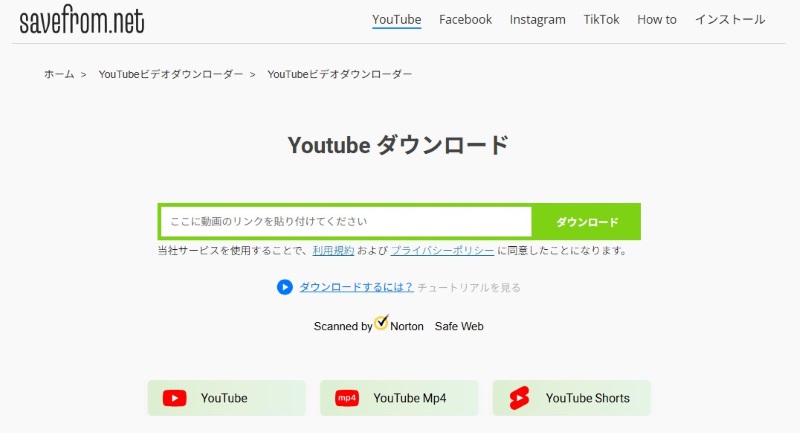
step 1, Find the video you want to save on YouTube and copy the URL using the share button.
Step 2, Access the official "SaveFrom.Net" website in your browser, paste the URL into the input field, and click "Download".
Step 3, After analyzing the URL, you can select the output format and quality according to your purpose. This site only allows you to save 360p videos for free. To download higher quality videos (720p or above), you need to purchase a paid product.
Step 4, Click the download button to save the video. Another advertisement page will open, so close any unnecessary pages before downloading the YouTube video.
Author's User Review
Online video saving sites like "SaveFrom.Net" are convenient for saving just one short YouTube video. They're easy to use because they don't require any software installation. However, online sites often have a lot of ads, and there are limitations on saving speed and output quality, making them unsuitable for saving long videos or high-resolution videos. If you want to save videos to your PC in high quality, using dedicated software will ultimately be a smoother solution.
PC users can also record and download YouTube videos using the standard features of their computer.
Windows comes with a built-in recording function called "Game Bar." You can use this function to easily record and save YouTube videos.
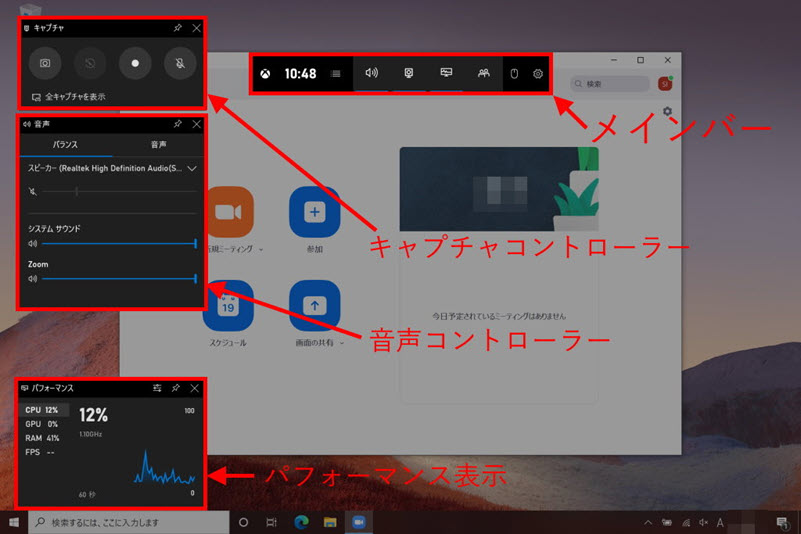
Here are the steps to record and save YouTube videos to your PC:
step 1, Enable Game bar. Open Settings > Games > Game bar and turn on "Record game clips, screenshots, and broadcasts using Game bar."
Step 2, Start recording while playing a video. Play a YouTube video and press [Win+G] to open the Game bar. Click the "Start Recording" button or press [Win+Alt+R] to start recording.
Step 3, End recording. When the YouTube video finishes playing, press [Win+Alt+R] again to end recording the YouTube video you want to save to your PC. The recorded YouTube video you want to save to your PC will be saved in the [C:UsersUsernameVideo Capture] folder.
Mac has a built-in recording function called "QuickTime Player." Using QuickTime, you can easily record and download YouTube videos on your computer.
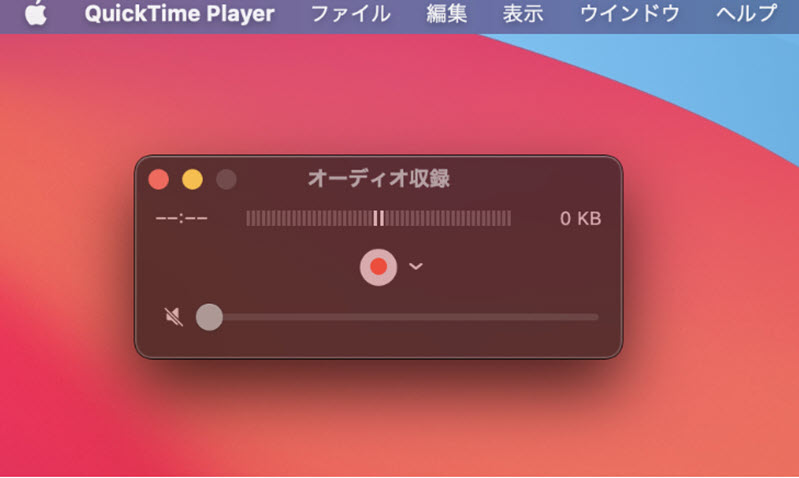
To record and save a YouTube video, follow these steps:
step 1, Open QuickTime Player. Open "QuickTime Player" from the [Applications] folder.
Step 2, Start screen recording. Select "New Screen Recording" from the "File" menu. Click the record button, select the playback area of the YouTube video and start recording.
Step 3, Stop recording. When you're done playing the YouTube video, click the stop button in the QuickTime menu bar. Save the recorded video to the location you want.
please note:
Saving YouTube videos using your computer's standard recording function has the disadvantage of not allowing you to freely choose the save format or video quality. Also, notifications that appear during recording or incorrect volume settings will be recorded along with the video. Furthermore, the recording time is equal to the length of the video, so a 30-minute video will generally take around 30 minutes to record.
If you want to save videos in high quality or efficiently save multiple videos, dedicated video download software like "StreamByte for Video" is more suitable than recording methods.
YouTube Premium is a paid subscription service offered by YouTube that allows you to watch all videos without ads and also allows you to download videos to your device for offline viewing, which is convenient when you are away from the internet.
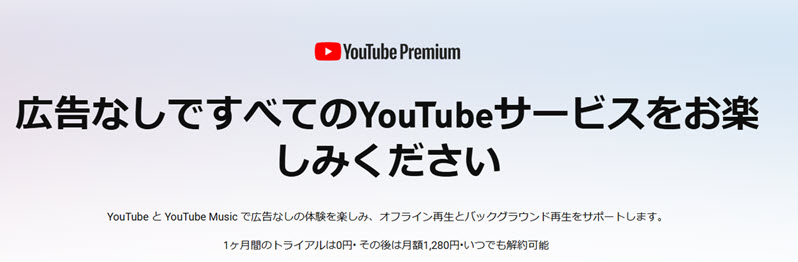
To download videos from the official YouTube service, log in with your YouTube Premium account, open the playback page of the video you want to save, and click "Offline." This will start the temporary saving process to your computer.
However, the ability to download and save YouTube videos to your computer is only available during the paid subscription service period, so once the service ends, any YouTube videos you have already downloaded and saved will no longer be viewable on your PC, and you will no longer be able to transfer them to other devices as regular video files to play them. Taking these points into consideration, it is important to carefully consider whether the service meets your needs.
Author's User Review
YouTube Premium is suitable for those who want to watch YouTube videos offline using only official features. It offers a high level of security because there are no ads and you don't need to use dubious download sites. However, it's not suitable for those who want to permanently save videos as standard video files on their PC. For those who want to freely transfer and watch YouTube videos, or who want to carefully select subtitles and file formats, dedicated software would be more convenient.
100% safe, virus-free
100% safe, virus-free
Before downloading and saving your favorite YouTube videos to your PC, there are a few things you should keep in mind, so let's check them out!
In recent years, YouTube has been strengthening its copyright protection and terms of use, which has led to an increase in restrictions on downloading YouTube videos. YouTube officially offers the offline playback feature of "YouTube Premium", but does not allow direct downloading of YouTube videos for regular free users.
Furthermore, YouTube frequently makes changes to its specifications and performs technical updates, which can sometimes cause download tools to suddenly become unusable. In particular, changes to YouTube's encryption technology often temporarily cause many download tools to stop working.
Subscribing to YouTube Premium and downloading videos from the official app is the safest option, but if you want to bypass the playback restrictions that come with the official download feature, you'll need to use third-party software or online tools.
However, some online sites display advertisements and may contain viruses or malware. To protect your security, it is important to choose a trustworthy video downloading software or site. We recommend checking the user reviews of the tool in advance.
YouTube's terms of service prohibit the downloading of YouTube videos that infringe copyright. Be sure to only download officially authorized YouTube videos or content you have created. Saving copyrighted YouTube movies, music videos, TV shows, etc. without permission may be a violation of the law. To use YouTube videos safely and legally,StreamByte for VideoWe recommend specialized software such as ".
100% safe, virus-free
100% safe, virus-free
We have received many questions from users who want to download YouTube videos on their PC, so we hope to provide you with the most popular questions and their answers here.
Yes, it may be illegal. For example, downloading videos such as TV shows and movies that have been uploaded without the permission of the copyright holder constitutes copyright infringement. In addition, re-uploading downloaded videos to social media, blogs, or video sharing sites is also clearly illegal.
On the other hand, if there are no special restrictions on use on the site and the downloaded embedded video is for personal use only, the act is rarely immediately deemed illegal. However, since there are cases where it is difficult to judge, it is advisable to save only permitted content to avoid risks.
Generally, recording a YouTube video playback screen will not be directly known to YouTube or the person who posted the video. If you are watching the recorded video for personal use, there are very few cases where it will cause problems. However, uploading the recorded video to social media or selling it commercially without the permission of the rights holder may be considered copyright infringement.
Please comply with laws and terms of use, and make sure to use screen recordings for personal use only, and do not share or sell them without permission.
There are several ways to save YouTube videos to your smartphone, but they differ depending on whether they are official or unofficial. The official way is to subscribe to YouTube Premium and download videos for offline playback within the YouTube app. However, with this method, the downloaded videos can only be played within the YouTube app, and cannot be saved as files on your device. On the other hand, unofficial ways include using online downloaders and dedicated apps such as "StreamByte for VideoYou can also use YouTube download software such as YouTube. Of course, it is recommended that you check for copyrighted content before downloading.
If downloading YouTube videos directly takes up storage space,StreamByte for Video"Extract and save only the audio from a YouTube videoThis tool is very useful. It allows you to freely select from a variety of multilingual audio tracks from YouTube videos, convert them to MP3 format, and save them to your computer.
You may be able to save your uploaded YouTube videos from YouTube Studio. Log in to YouTube Studio on your PC, open "Content" in the right-hand menu, and select the download option from the menu for the video you want to save. There are limitations on the quality you can save, and it may not be possible to restore it to the same quality as the original uploaded file. Also, depending on the video's condition, it may not be possible to download it. For important videos, it's a good idea to back up the original file before uploading it.
Videos temporarily saved using YouTube Premium on your PC can be viewed from the "Offline" option in the left-hand menu of YouTube. They won't appear in your Windows Downloads folder or Mac Finder like regular MP4 files. YouTube Premium's temporary saving feature is for offline viewing within YouTube. Therefore, you cannot open them with another video player, or...Transfer to USB memoryIt is not suitable for uses such as [specific applications].
Not all YouTube video download sites are dangerous, but some are full of ads or display fake download buttons. Be cautious if you are asked to grant permission for unknown notifications, add extensions, or install other software. While these sites may be convenient for saving a single short YouTube video, they may not be stable for saving long videos, high-resolution videos, or multiple videos. If you prioritize safety and efficiency, it is safer to use YouTube's official service or dedicated video download software available from the official website.
In this article, we have introduced various ways to save YouTube videos to your computer. Each method has its own characteristics, such as free dedicated software, online sites, and paid official subscription services, so you can enjoy videos more comfortably by using them according to your purpose.
Among them, "StreamByte for VideoThis is a high-performance video downloader that can output YouTube videos in the highest quality, analyze even long videos without failure, and permanently save them to your computer as video files such as MP4/MKV/MOV. In addition to YouTube, it supports saving videos from a wide range of streaming and sharing services such as Netflix, Amazon Prime, Disney+, and Hulu. Because you can save videos from multiple platforms with a single tool, it is ideal for those who want to enjoy a better YouTube download and viewing experience.
You can try it for free first, so please experience its ease of use.
100% safe, virus-free
100% safe, virus-free
Born in Tokyo in 1997. After graduating from a university in London, he worked at a major IT media company, writing articles about video streaming services, video downloaders, and digital content.More than 3 years of experience in editing, proofreading, and writing directionThe articles he has worked on have garnered over 5 million page views, and he is well-known for producing content that is carefully crafted from the reader's perspective.
Currently, as an editor and web writer at StreamByte, he works on creating articles that help users solve their problems, focusing on information related to video streaming services and downloads, with the aim of being "user-oriented, easy to understand, and immediately useful."
Read more articles together



Experts in supporting offline viewing of streaming video services
Subscribe to StreamByteCopyright © 2026 StreamByte. All rights reserved.



Get the latest news, product upgrades, information, guides, discounts and more about StreamByte.
Please enter a valid email address.

A highly capable video downloader:
StreamByte for Video
Even beginners can rest assured! You can try saving videos for free first!







 English
  Japanese
  Chinese (traditional)
  German