
- Online video downloader
- Streaming Products
- BD-DVD products
- Store
- Useful Articles
- support
Share this article!


The question, "Is it possible to screen record videos streamed on U-NEXT?" is frequently seen on sites like Yahoo! Answers. While the U-NEXT app has a download function, there are restrictions, such as the ability to play saved videos only within the app. Therefore, many people want to screen record U-NEXT videos to save them.
This article will explain in detail the main methods for screen recording U-NEXT videos. It will also cover alternative methods for when the recorded video is completely black or when screen recording U-NEXT videos is not possible. Please read to the end.

Related Posts:
Before explaining how to screen record U-NEXT videos, there are some important points to keep in mind. Many videos streamed on U-NEXT are protected by DRM, so they may not record properly using normal methods. As a result, the screen may appear completely black when you try to screen record. If you encounter this problem and still want to save U-NEXT videos, it is recommended to use a specialized video downloader.
The environment used for this verification
The method for screen recording U-NEXT videos varies depending on the device and environment you are using. On a PC, you can use recording software or browser extensions, while on a smartphone, you can use the standard screen recording function built into the device. Here, we will explain the main methods for screen recording U-NEXT videos in detail.
If you're watching U-NEXT videos on your computer using a browser like Chrome, you can also use a screen recording extension. For example, extensions like "Flonnect" or "Screenity" allow you to easily record your screen directly in your browser without installing any special software.
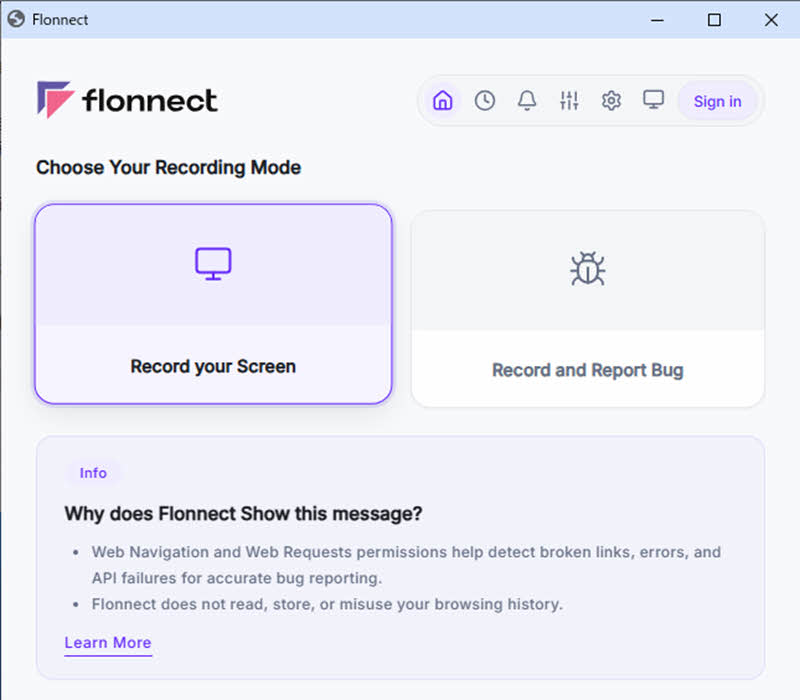
On the other hand, screen recording using extensions depends on the browser environment, which can sometimes lead to unstable operation. Since problems may occur during recording, it's necessary to test the functionality beforehand if stability is a priority. Here, we'll use "Flonnect" as an example to show you how to screen record U-NEXT videos using an extension.
Step 1Next, access the Chrome Web Store and add "Flonnect" to your browser. After adding it, open the viewing page of the program you want to record on U-NEXT and prepare to record.
Step 2,Access the installed Flornect from the extensions menu, and then select the screen recording option."Record Your Screen"Select this option. After setting the recording range,"Start Recording"Pressing this button will start recording.
Step 3,Once you've recorded up to the necessary point, you can see it on the Flonnect screen."Stop" buttonSelect this option to end the recording. After recording ends, you can review the generated recording data and save it to any location.
Author's verification results
When we tested recording U-NEXT videos using the Chrome browser and the "Flonnect" extension, we found that in some cases recording worked correctly, but in other cases the recorded video was a black screen with only the audio being saved.
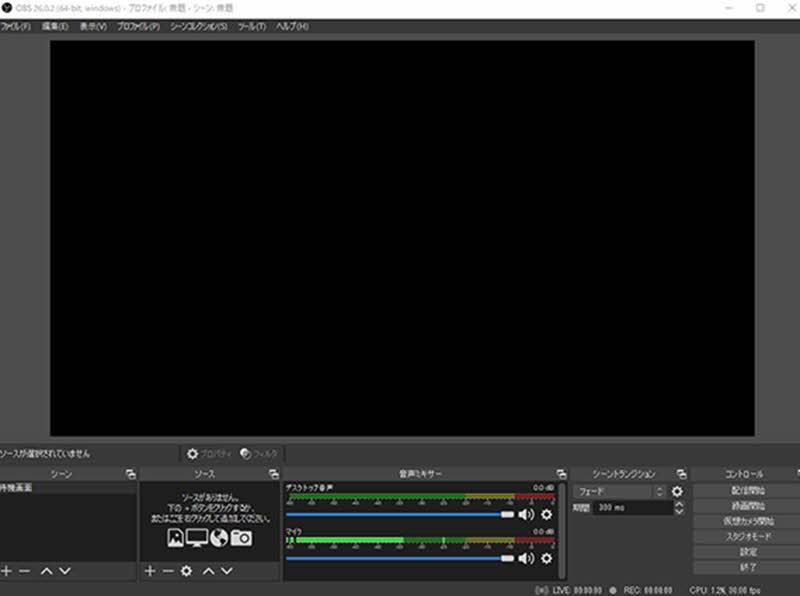
If you don't mind installing additional software, you can also use screen recording software such as "OBS Studio" to record U-NEXT videos. Compared to browser extensions, screen recording software can be expected to operate more stably and record in higher quality. Here, we will introduce how to screen record U-NEXT videos using screen recording software, with "OBS Studio" as an example.
Step 1First, make sure you can play the video you want to save on U-NEXT. Next, launch OBS."sauce"From the additional menu"Screen capture"Select this option to set the screen to be recorded.
Step 2Then, check various settings such as recording range and audio input as needed. Once you are ready, click in the lower right corner of the OBS screen."Start recording"Clicking this will start recording.
Step 3Once you've finished screen recording the U-NEXT video, use OBS."Recording finished"Press to stop. Recorded files can be viewed in the pre-configured output folder.
Author's verification results
When I tried recording U-NEXT videos using OBS on my PC, I found that, similar to the case with the extension, the video screen turned black and only the audio was recorded. The frequency of this issue was about the same as with the extension, indicating that saving the video via screen recording is not very stable.
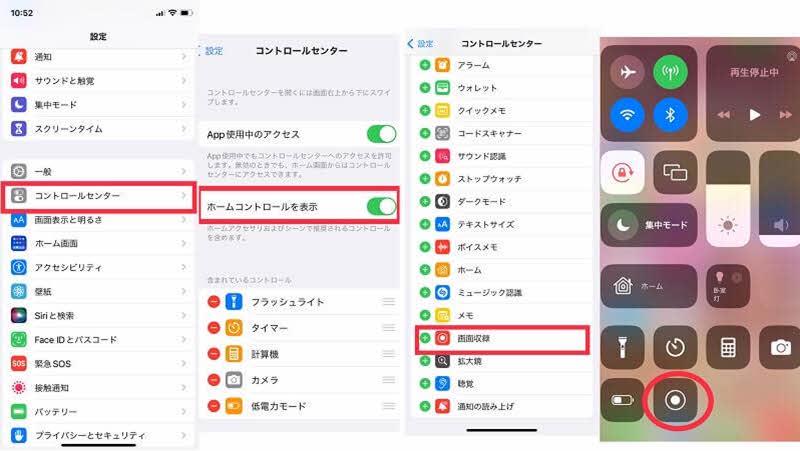
If you're using an iPhone, you can easily record U-NEXT videos using the standard screen recording function built into your device. The advantage is that you don't need to install any additional apps, but the image quality and flexibility of recording settings may be inferior compared to dedicated recording software. Here, we'll explain how to record U-NEXT videos on your iPhone.
Step 1iPhone"setting"Open the Control Center from there."Screen recording"Verify that the feature has been added. If it's not displayed, add it to the Control Center to get it ready.
Step 2Next, launch the U-NEXT app and display the playback screen of the video you want to record. With that screen open, bring up the Control Center.Screen recording iconTap here. After the countdown ends, screen recording of the U-NEXT video will start automatically.
Step 3To stop recording, tap the recording indicator at the top of the screen or in the Control Center."Screen Recording" buttonPress it again. The U-NEXT video that has finished screen recording will be on your iPhone."Photos" appIt is saved and can be viewed at any time.
Author's verification results
When I recorded a U-NEXT video using my iPhone 14 Pro (iOS 26), I was unable to save it properly, and the same problem of a black screen occurred as when recording on a PC. From this result, it is highly likely that U-NEXT videos are protected by DRM.
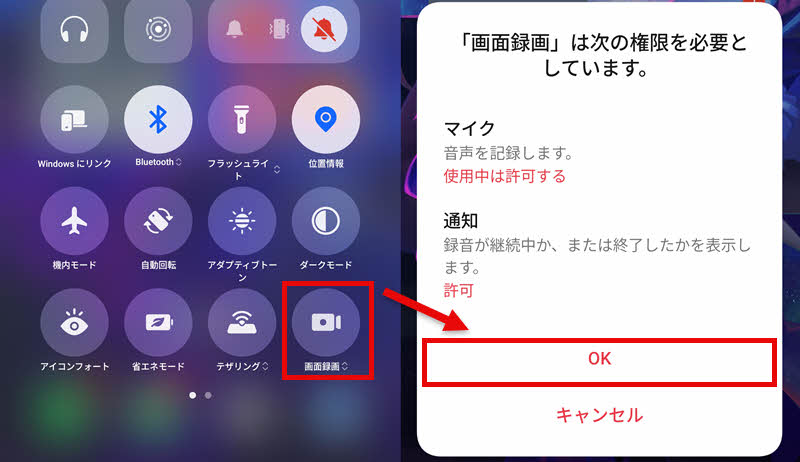
Android smartphones, like iPhones, can utilize the device's built-in screen recording function. However, the operation method and setup procedures differ from those of iPhones, so this guide will explain how to screen record U-NEXT videos on an Android device.
Step 1To prepare for recording, first launch the U-NEXT app and open the viewing screen of the video you want to save.
Step 2Swipe down from the top of the screen to display the quick settings menu."Screen recording"Select this option and confirm the necessary settings for screen recording. Once the countdown ends, U-NEXT video recording on your Android device will begin.
Step 3To end the recording, press the stop button displayed on the screen. The created recording data will be saved to your device's storage and can be played back from apps such as the gallery.
Author's verification results
When I recorded a U-NEXT video using my OnePlus Ace 6T (Android 16), the screen turned black, just like when recording on an iPhone, and only the audio was recorded. Overall, it can be said that saving U-NEXT videos by screen recording does not have a very high success rate.
We've introduced various methods for screen recording U-NEXT videos, but in reality, due to DRM restrictions, there are cases where the recorded video appears as a black screen. In such cases, normal screen recording may not be able to save the video properly.
Therefore, as an alternative method if you are unable to properly screen record U-NEXT videos, we recommend using video saving software "StreamByte for VideoThere is a way to use this software. This software is powerfulDRM protection removal functionIt features the ability to save U-NEXT videos in common formats such as MP4. This avoids the black screen problem that often occurs during screen recording. In addition, it significantly reduces the time required to save videos compared to screen recording, and saves them in high quality, allowing you to enjoy U-NEXT videos more comfortably.
StreamByte for Video
This is a video downloader that supports major streaming services such as Netflix, Amazon Prime, and YouTube. You can save and enjoy your favorite videos with high image quality up to 8K and Dolby Atmos audio.
"Why we recommend StreamByte for Video"
Here, "StreamByte for VideoThis guide explains how to download U-NEXT videos using [this method].
Step 1Launch "StreamByte for Video" and log in to your account. From the list of compatible services displayed on the home screen, select "U-NEXT," or open a new tab and access the U-NEXT official website.
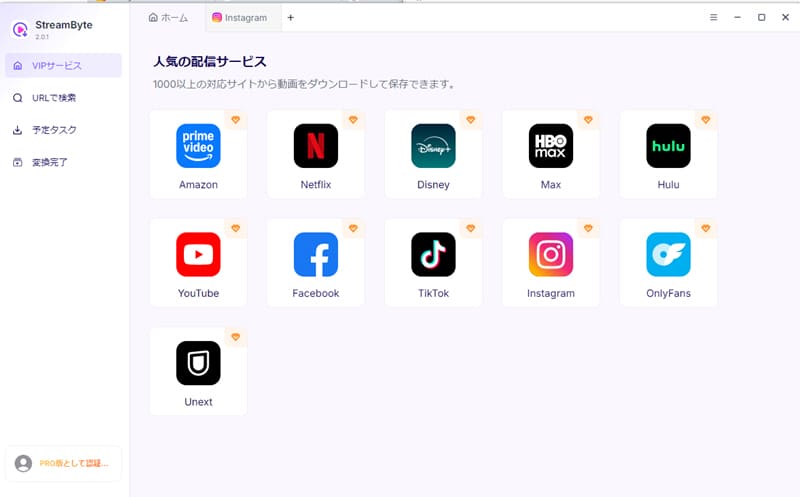
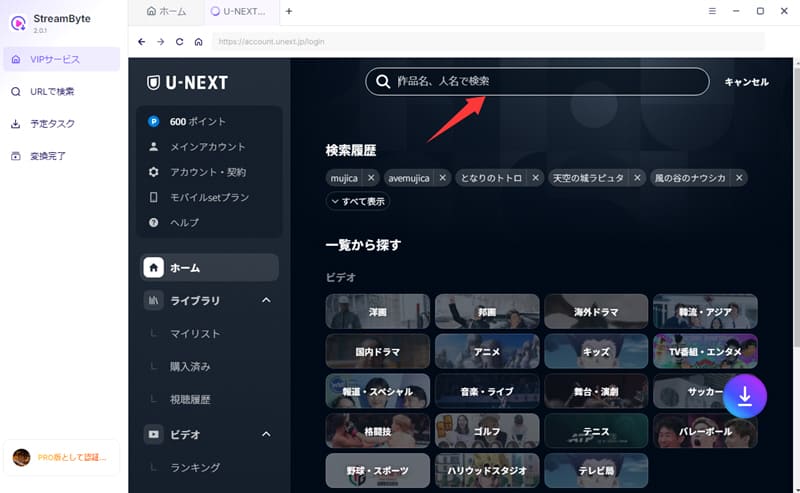
Step 2Enter your U-NEXT login information to access the service.Log inI will. I will save the works I want to keep.searchThen, open the target video page and display the detailed information.
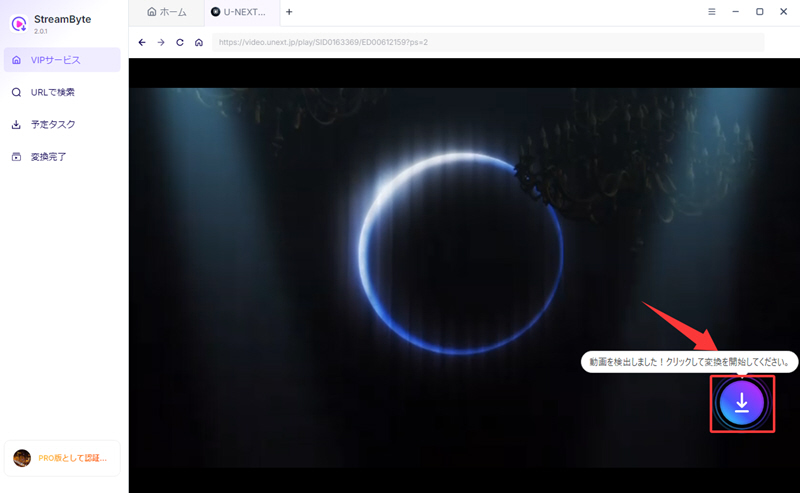
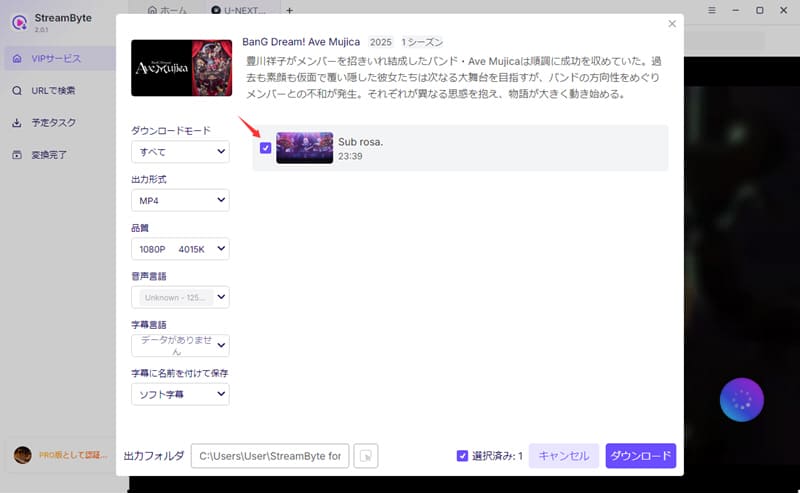
Step 3Once the video page analysis is complete, click the "Download" icon displayed in the lower right corner of the screen. The selected video will be added to the download list, and you will be able to configure the save settings.
Step 4On the download settings screen, you can adjust items such as image quality and output format as needed. After checking the settings, click in the bottom right corner."Download" buttonClicking this will start saving the U-NEXT video.
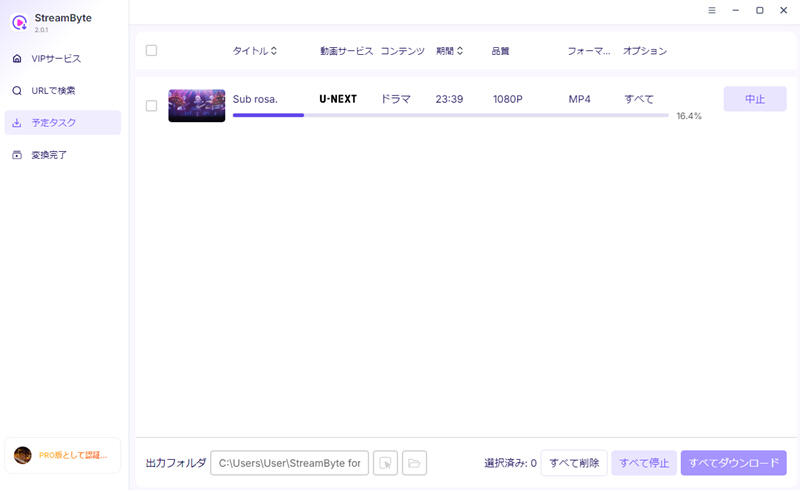
Step 5The download progress is as follows:"Scheduled Tasks" tabYou can check it there. Videos that have been processed will be automatically..."Conversion complete"You can open and play saved U-NEXT videos by switching to a tab.
"StreamByte for VideoUsing this software, you can easily save U-NEXT videos in common formats such as MP4. Unlike screen recording, there is no need to record while playing the video, so the saving time is significantly reduced, and the video can be saved in high quality. In addition, it has a DRM protection removal function, so it can avoid the black screen problem that often occurs with screen recording. Furthermore, by using the built-in web player, you can complete operations from searching for videos to saving them within the software, making it easy for even beginners to use.
100% safe, virus-free
100% safe, virus-free
The act of screen recording a U-NEXT video does not send a notification or inform the other party that you have recorded it. Therefore, it is generally unlikely that they will find out that you have screen recorded it.
However, if you redistribute recorded U-NEXT videos to third parties or publish them on the internet, you may receive a warning or be held liable. Therefore, please use recorded content within appropriate limits.
Screen recording U-NEXT videos is essentially a form of unauthorized storage and may be illegal. However, if you enjoy the recorded content for personal viewing purposes and do not redistribute it or use it for commercial purposes, you are generally not held liable. However, since this is a delicate issue involving copyright, please check the laws in your area and U-NEXT's terms of service for actual handling of the matter.
Unfortunately, it is generally not possible to screen record U-NEXT videos playing on your TV. Many TVs and external devices use HDCP, a copyright protection technology to prevent illegal copying. Therefore, even if you try to record using an HDMI capture device, you may encounter problems such as the video appearing black or the audio not being saved correctly. If you want to save U-NEXT videos in high quality, you will need dedicated video download software.StreamByte for VideoUsing "[this method]" is recommended.
There are several reasons why a U-NEXT video might appear completely black when screen-recorded. The three main causes are the effects of hardware acceleration, problems with the capture method of the recording software, and recording restrictions imposed by DRM.
Hardware acceleration can increase the GPU load and sometimes cause a black screen. If you are using Chrome, please go to your browser's "Settings" → "System" → and turn off the "Use hardware acceleration when available" option, then try again.
Additionally, the capture method used by your recording software may cause certain windows to appear black. In this case, please try recording using a different capture method.
Furthermore, one of the most common causes is recording restrictions due to DRM protection. Because it cannot be saved using normal screen recording,StreamByte for VideoThere are methods such as using dedicated software that has a DRM protection removal function.
This article has provided a detailed explanation of the main methods for screen recording U-NEXT videos. However, because U-NEXT videos are protected by DRM, screen recording may result in a black screen and may not be saved correctly. Therefore, as an alternative method when screen recording U-NEXT videos is not possible, we will introduce a video downloader.StreamByte for Video" was introduced.
This software allows you to bypass the DRM restrictions on U-NEXT videos and save them without worrying about the black screen issue that often occurs with screen recording. Furthermore, since it doesn't require real-time playback like screen recording, saving time is significantly reduced. Additionally, it allows you to save videos while maintaining high image quality, providing a more comfortable viewing experience for U-NEXT videos compared to screen recording, which often results in unstable image quality.
"StreamByte for Video"forFree trialWe also have a solution available, so if you're having trouble recording your U-NEXT screen, please give it a try.
100% safe, virus-free
100% safe, virus-free
Born in Tokyo in 1997. After graduating from a university in London, he worked at a major IT media company, writing articles about video streaming services, video downloaders, and digital content.More than 3 years of experience in editing, proofreading, and writing directionThe articles he has worked on have garnered over 5 million page views, and he is well-known for producing content that is carefully crafted from the reader's perspective.
Currently, as an editor and web writer at StreamByte, he works on creating articles that help users solve their problems, focusing on information related to video streaming services and downloads, with the aim of being "user-oriented, easy to understand, and immediately useful."
Read more articles together
Experts in supporting offline viewing of streaming video services
Subscribe to StreamByteCopyright © 2026 StreamByte. All rights reserved.



Get the latest news, product upgrades, information, guides, discounts and more about StreamByte.
Please enter a valid email address.
A highly capable video downloader:
StreamByte for Video
Even beginners can rest assured! You can try saving videos for free first!







 English
  Japanese
  Chinese (traditional)
  German