
- Online video downloader
- Streaming Products
- BD-DVD products
- Store
- Useful Articles
- support
Share this article!


CleverGet is video download software for people who want to save videos from video streaming and sharing sites to their computers. The official website states that it supports over 1000 video streaming sites, including Netflix, Amazon Prime, Hulu, U-NEXT, ABEMA, Disney+, TVer, YouTube, and TikTok. In addition to video downloading, it also includes a screen recording function. It's available for both Windows and Mac, and its features, such as batch saving of multiple episodes and selection of subtitles and audio tracks, give it a strong advantage over similar software.
However, CleverGet is not a software that can be easily purchased. It's important to check beforehand the scope of the free version, the differences between the free and paid versions, the image quality that can be saved, and how it performs on different websites.
This article will thoroughly examine CleverGet's features, main functions, differences between the free and paid versions, how to use it, and even the image and sound quality after saving, in order to answer these questions. If you are considering installing CleverGet or want to check its usability before purchasing, please refer to this article.
Related Posts:
CleverGet is video download software that allows you to access video streaming sites on your computer, analyze videos, and save them in formats such as MP4 and MKV. Because it has a built-in browser, you can access target sites within CleverGet and play videos while saving them, rather than having to search for and paste URLs in an external browser. CleverGet supports numerous services including Amazon Prime, Netflix, Hulu, U-NEXT, TVer, Disney+, ABEMA, FOD, YouTube, Niconico Video, and TikTok.
In a nutshell, CleverGet's key feature is..."An all-in-one software that allows you to save videos from multiple websites and manage them all in one program."It supports not only free video sites like YouTube, but also VOD, social media, live streaming, playlists, channel videos, and more, making it a user-friendly option for those who need more than one way to use it.
| item | Content |
| soft | CleverGet All-in-One |
| Developer | Leawo Software |
| Latest version | 26.0.0.1 (as of May 2026) |
| Official site | https://www.cleverget.jp/ |
| Supported OS | Windows 7/8/8.1/10/11 (64-bit) macOS 11/12/13/14/15/26 |
| Main supported sites | Over 1000 services including Netflix, Amazon Prime Video, U-NEXT, ABEMA, TVer, Hulu, Disney+, FOD, YouTube, TikTok, Niconico Video, and more. |
| Video output format | MP4, MKV, WEBM, 3GP |
| Audio output format | WEBM, M4A, etc. |
| Subtitle output format | SRT, SUP (Windows) |
| image quality | Supports 720p, 1080p, 4K, and up to 8K resolutions. |
| sound quality | Up to 320kbps |
| Bulk download | Up to 5 bottles |
| Recording function | CleverGet screen recorder included |
| Main limitations of the free version | Up to 3 recordings per compatible site/module; recording is limited to 3 minutes during the trial period. |
| price | 1-year plan: 25,900 yen (tax included) Perpetual license: 37,995 yen (tax included) Individual module purchase: From ¥4,651 (tax included) per year / From ¥7,600 (tax included) per lifetime |
CleverGet's functions can be broadly divided into the following four categories:
| function | Content |
| URL analysis and video download | You can play videos using the built-in browser and save them after analysis. |
| Screen recorder | Videos that are difficult to download and analyze can be saved by screen recording. |
| Bulk download | You can save multiple episodes, playlists, and channel videos all at once. |
| Subtitle/Audio Selection | You can also select subtitles and audio tracks and save them as SRT/SUP subtitles. |
One particularly convenient feature is the ability to select subtitles and audio tracks in advance. When saving foreign TV series or multilingual content, you can choose to embed subtitles in the video or save them as separate files in SRT/SUP format, making it suitable for those who want to manage subtitles later on the player side.
CleverGetThis is suitable for people who use multiple video sites and want to manage their videos all in one place on their PC.This software is particularly easy to use for those who want to select subtitles and audio tracks, save in MP4 or MKV format, or save playlists and series together.
On the other hand, for those who want to complete everything on their smartphone, those who are satisfied with offline playback using the official app, or those who only use one service, the all-in-one version may feel somewhat excessive. Note that CleverGet is not only available as an all-in-one version, but also allows you to purchase individual modules for specific video sites. However, when comparing the price of perpetual licenses, there are cases where other video saving software supporting multiple sites can be chosen for a similar budget. If you only want to save videos from one service or use a limited number of sites, it's a good idea to consider the balance between features and price before making a choice.
CleverGet has a free trial version, but it's not completely free software. It's best to think of it as a trial version to check if it works properly on your PC, if it can analyze the videos you want to save, and if the image quality and subtitles are as expected before purchasing.
| item | Free version | Paid version |
| Number of downloads | Up to 3 per module | No limit |
| Screen recorder | 3-minute time limit, may contain watermarks. | No limit |
| Picture quality and sound quality | You can try out the maximum picture and sound quality. | Continued use is possible at the maximum picture and sound quality. |
| Bulk download | It can be checked within the trial period. | No limit |
The official related page states that the free version of CleverGet is available for each module.Up to 3 bottlesIt is described as being available for download. Also, the screen recording function is available in the free trial version.3-minute recording limitThere is.
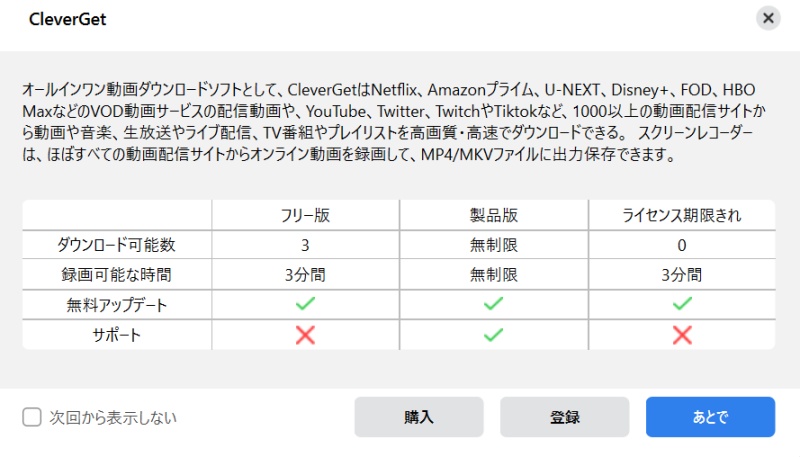
When I actually tried out CleverGet's recording function, I was able to confirm that no watermark was added to the recorded video.

The free version of CleverGet is for checking if it works properly in your environment before purchasing. You should try downloading a video you want to save and check the video quality, audio, subtitle display, saving speed, and whether there are any errors before considering the paid version.
This section explains the basic usage of CleverGet. The basic operations are not very difficult, but depending on the target site, there are cases where videos cannot be detected unless you log in, the analysis button does not respond unless you open the playback page, and the selectable image quality depends on the specifications and contract plan of the official distribution site. Furthermore, the subtitle and audio track options differ for each video, so you need to check in advance whether you can save with the settings you want. Even when using a screen recorder, if you make a mistake in the recording area or audio settings, the screen may be recorded but the sound may not be included.
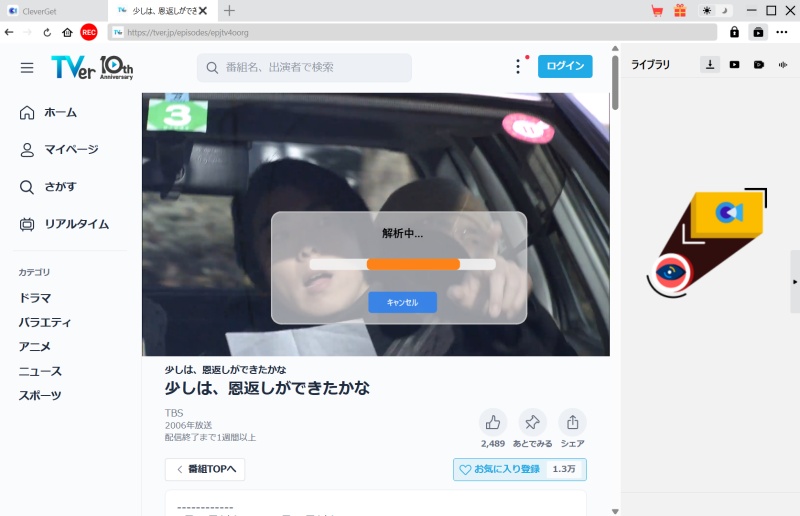
step 1First, download and install CleverGet on your computer. Then, open the built-in browser and play the video you want to download using CleverGet. Next, click the download icon to analyze the video. Finally, click the "REC" button in the upper left corner to record the video.
Step 2Select the episode you want to download, choose the resolution, video format, subtitles, and audio track, and configure the output settings. Finally, click the download button at the bottom to start downloading the video.
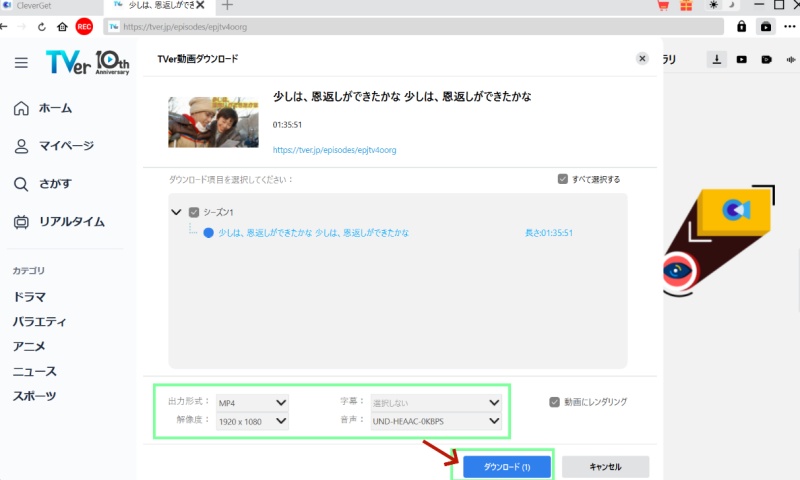
When I actually tried the free version of CleverGet, the download process proceeded without any problems, even for a video that was about 1 hour and 35 minutes long. When I clicked the download button, a pop-up appeared informing me that the free version allows a maximum of 3 videos to be downloaded. In this test, the process from analysis to saving was generally smooth, and the download took about 4 minutes and 35 seconds.
The saved video was output at the pre-set quality, and the image played back relatively clearly. However, downloading with CleverGet does not mean the video will be of higher quality than the original; it's best to assume that it will be saved at a quality close to the original. The saved video file could be played on a standard computer browser, and there was almost no stuttering during playback.
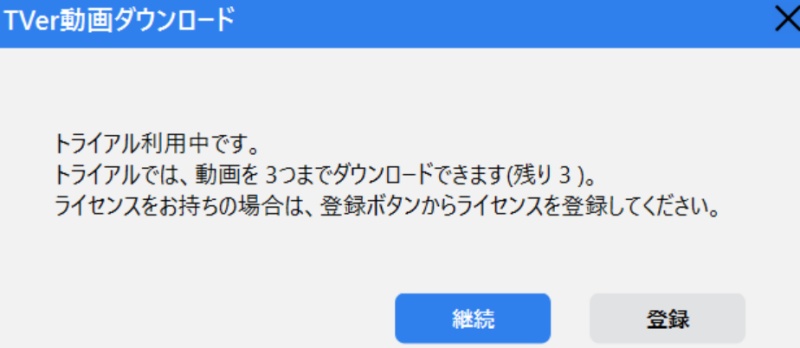
If you are unable to download videos with CleverGet, please do not immediately assume that the software is unusable, but instead check the following:
| cause | Confirm |
| The way the video page opens is different. | Open the details page or playback page of the work, rather than the homepage. |
| Login has expired. | Log in again to the service in question. |
| Image quality selection is set to automatic. | Analyze after checking the playback quality. |
| Cache is accumulating | Delete CleverGet cache and history |
| Service-side specification changes | Update the software to the latest version. |
| Unstable connection | Check VPN, proxy, and internet speed. |
| PC environment issues | Check your graphics driver, HDCP, and external monitor settings. |
CleverGet is the type of software that is easily affected by changes in the specifications of video websites. Videos that you were able to save yesterday may suddenly become unreadable. If you plan to use it for a long time, it's a good idea to check the speed of updates and the availability of support.
While CleverGet generally receives high praise for its functionality, users should be aware of its price, limitations in the free version, and potential instability due to service provider changes. Reviews on the official website praise its ease of use, fast link analysis, and bulk playlist downloads.
Actual users have reported issues such as being unable to proceed to the download screen because video analysis never finishes, suddenly being unable to save videos, and not being able to use features like Full HD or simultaneous downloads as expected.
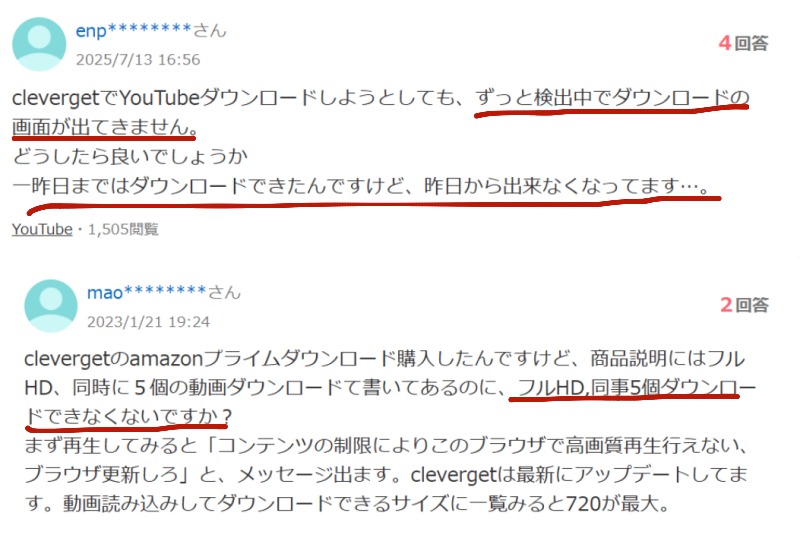
(Image source: Yahoo! Answers)
Advantages:
Cons:
Overall, CleverGet is suitable for those who prioritize functionality. It's particularly convenient for people who use multiple services and want to manage video files on their PC. On the other hand, those who prioritize cost-effectiveness or only want to use specific services should compare individual modules before purchasing.
on the other hand,"StreamByte for VideoWhile it doesn't have a built-in recording function, CleverGet supports a wide range of major video streaming services and video sharing sites, and has all the essential video saving functions you need, such as high-quality downloads, file format conversion, and subtitle output. The free trial version allows you to download up to three videos per day from video sharing services, which is an advantage as it makes it easy to check its usability before purchasing. CleverGet is feature-rich, but some people may not be able to use all of its functions or may be concerned about the price, so if you are looking for a simpler and easier-to-use video saving software, "StreamByte for Video" is also a strong alternative worth considering.
100% safe, virus-free
100% safe, virus-free
CleverGet itself can be treated as a typical PC software as long as you download and use it from its official website. However, when it comes to safety, you need to consider "the safety of the software itself" and "the legality of the act of saving videos" separately.
If you use CleverGet, be sure to obtain the installer from the official website. You should avoid unofficial distribution sites, cracked versions, and illegal license keys. Cracked versions carry risks such as malware infection, personal information leakage, and payment information leaks, and may not function properly.
Furthermore, it is dangerous to look for unofficial tools to remove the limitations of the free version of CleverGet. If you want to remove the limitations, it is safer to choose a method other than purchasing a legitimate license.
CleverGet offers many features, but its price is on the higher side, making it a software that can make you hesitate about whether to purchase the all-in-one version. It's convenient if you want to manage multiple services together, but for those who want to save videos more easily, mainly from major video streaming services, "StreamByte for Video" is also a strong option.
"StreamByte for VideoThis software is compatible with Windows and Mac and supports video streaming services such as Netflix, Amazon Prime, YouTube, Disney+, HBO, and Hulu. It also features functions such as saving in MP4, MKV, and MOV formats, batch download, subtitle selection, and up to 8K resolution.
StreamByte for Video
This is a video downloader that supports major streaming services such as Netflix, Amazon Prime, and YouTube. You can save and enjoy your favorite videos with high image quality up to 8K and Dolby Atmos audio.
What makes StreamByte for Video great?
HereStreamByte for VideoThis guide explains how to use [this method] to save Amazon Prime Video to your designated download location.
step 1When you log in to "StreamByte for Video," major video streaming services, including Amazon, will be displayed on the main screen. Select "Amazon Prime Video" from the list and log in with your Amazon account.
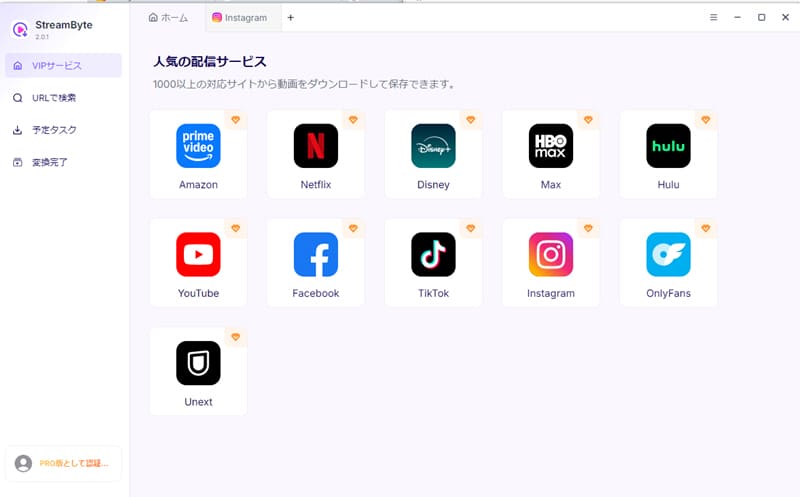
Step 2When you open the page of the video you want to download, the software will automatically analyze the video.Download iconThis will be enabled. Clicking this icon will add the video to your download list.
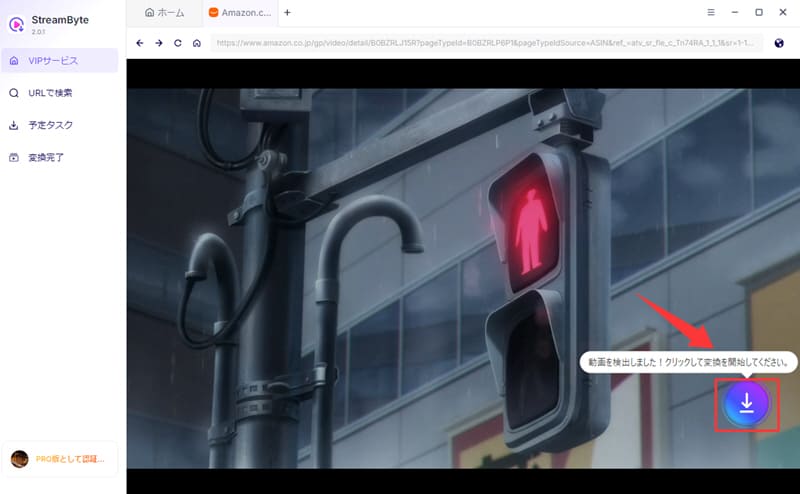
Step 3On the download settings screen, you can configure the output format, audio, subtitles, and other settings to your liking. You can also freely choose the download location.
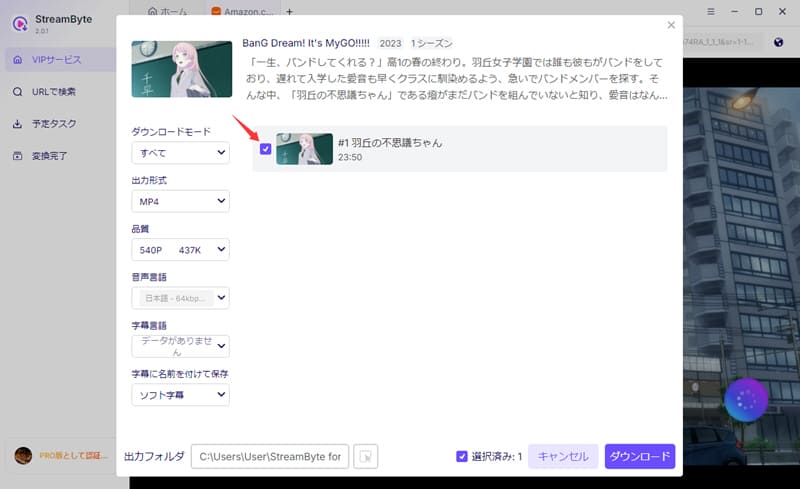
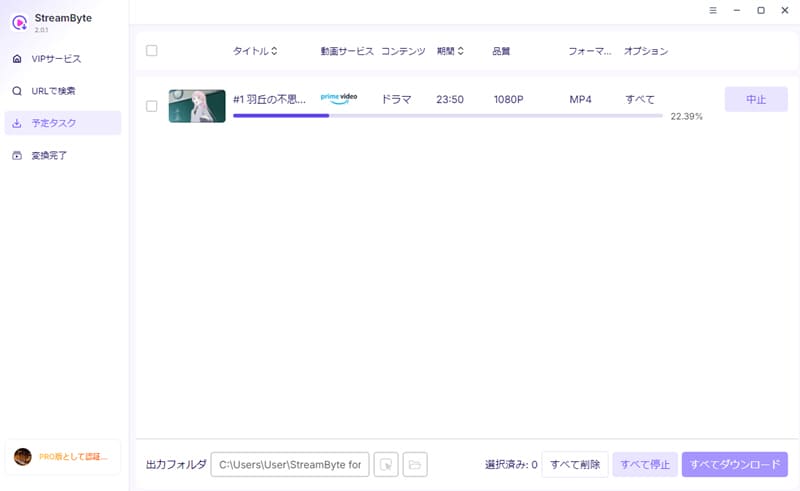
Step 4Finally, clicking the "Download" button will start the video download. You can check the progress on the "Scheduled Tasks" screen, and you can now permanently save Amazon Prime Video to your computer.
Compared to the free version of CleverGet,StreamByte for VideoThe free trial version of "[Software Name]" has the advantage of making it easy to check the output quality before purchasing. Although there is a limitation of only the first 5 minutes of videos from video streaming services, you can actually save them and check the image quality, sound, subtitles, and playback compatibility. In addition, since video sharing services allow you to download up to 3 videos per day, it is also advantageous that you can easily test the user experience and saving stability with multiple videos.
100% safe, virus-free
100% safe, virus-free
Verification conditions
*Actual download time may vary depending on your internet connection, computer specifications, video length, and video quality.
| item | CleverGet | StreamByte for Video |
| Supported OS | Windows / Mac | Windows / Mac |
| Main uses | Download + Recording | Download-focused |
| Storage format | MP4 / MKV / WEBM / 3GP etc. | MP4 / MKV / MOV etc. |
| image quality | Varies depending on the site and analysis results. | Varies depending on the original video (supports up to 8K). |
| Subtitle support | correspondence | correspondence |
| Recording function | Built-in screen recorder | none |
| Download time | 4 minutes 35 seconds | 3 minutes 48 seconds |
| DRM protection support | It varies depending on the site module. | You can save DRM-protected videos from compatible services. |
| Suitable people | People who value multi-functionality and recording capabilities | People who want to easily save a wide range of streaming services |
CleverGet is suitable for those who prioritize "wide compatibility" and "recording functionality." On the other hand, if you want to save videos with the simplest possible operation, mainly focusing on the video streaming services you use regularly, then...StreamByte for VideoYou might find the latter easier to use. It's best to start with a free trial version to check the supported services, save quality, subtitles, and output format before making a decision to avoid disappointment.
The CleverGet software itself is not immediately illegal. However, its legal status depends on the type of video being saved, the source of the content, the terms of service, and whether or not technical protection measures are in place.
Japanese copyright law may permit copying for private use, but copying that circumvents technological protection measures may be problematic even for private use. The Agency for Cultural Affairs also explains that copying made possible by circumventing technological protection measures such as encryption, while knowing that fact, may constitute copyright infringement.
Therefore, when using CleverGet, it is important to use it only within the limits of what can be legally saved, such as content permitted by the copyright holder, videos for which you own the rights, and videos for which downloading is permitted. For videos from streaming services, be sure to check the terms of service of each service.
The free version of CleverGet allows you to try downloading up to three videos for each supported module. This is sufficient for checking the video quality, subtitles, audio, and analysis capabilities before purchasing.
However, this software is not designed for long-term use with just the free version. If you have many videos you want to save or want to use the recording function without restrictions, you will need a paid license. First, try the target site with the free version to confirm that you can save without any problems before purchasing.
CleverGet is PC software, so it cannot be used on iPhones or Android smartphones alone. It needs to be installed on Windows or Mac to use.
However, if the video saved with CleverGet is in a common format such as MP4, it may be possible to transfer and play it on a smartphone or tablet. If you want to complete the process using only your smartphone, first check the offline playback function in the official app of each video streaming service.
It's not true that you can use CleverGet and never get caught. Video streaming services may monitor login history, access environment, playback status, and communication patterns. If any actions are deemed to be in violation of the terms of service, it could lead to account restrictions or suspension.
If you have concerns, using the official app's offline playback function is the safest option. CleverGet is a useful tool, but you need to check its usage limits yourself.
CleverGet's screen recorder feature allows you to record online videos while they are playing and save them in MP4 or MKV format. It can be used as an alternative when downloading videos that don't parse properly. However, recording quality is affected by PC performance and playback environment. Before recording for an extended period, it's recommended to perform a short test recording of a few minutes to check for audio sync issues, image quality, and file size to prevent problems.
The above provides a detailed explanation of CleverGet's features and characteristics, the differences between the free and paid versions, the limitations of the free version, how to use CleverGet, and its actual reputation. CleverGet is a multi-functional video download software that is advertised as supporting over 1000 video streaming sites. It includes a built-in browser, video analysis, MP4/MKV saving, subtitle/audio track selection, batch download, and screen recorder, making it a strong option for those who want to manage videos from multiple sites on their PC.
On the other hand, CleverGet is somewhat expensive, and even the free version has limitations. You can try up to three videos per module, so before purchasing, be sure to check whether it can properly retrieve the sites you want to use, the videos you want to save, and the required video quality, subtitles, and audio.
CleverGet is suitable for those who want a comprehensive solution that includes support for a wide range of sites, subtitle and audio selection, and recording functionality. If you are concerned about the price or ease of use,StreamByte for VideoIt's recommended to compare it with alternative software such as "[software name]" and check its actual usability with a free trial version before making a decision.
100% safe, virus-free
100% safe, virus-free
Born in Tokyo in 1997. After graduating from a university in London, he worked at a major IT media company, writing articles about video streaming services, video downloaders, and digital content.More than 3 years of experience in editing, proofreading, and writing directionThe articles he has worked on have garnered over 5 million page views, and he is well-known for producing content that is carefully crafted from the reader's perspective.
Currently, as an editor and web writer at StreamByte, he works on creating articles that help users solve their problems, focusing on information related to video streaming services and downloads, with the aim of being "user-oriented, easy to understand, and immediately useful."
Read more articles together
Experts in supporting offline viewing of streaming video services
Subscribe to StreamByteCopyright © 2026 StreamByte. All rights reserved.



Get the latest news, product upgrades, information, guides, discounts and more about StreamByte.
Please enter a valid email address.

A highly capable video downloader:
StreamByte for Video
Even beginners can rest assured! You can try saving videos for free first!







 English
  Japanese
  Chinese (traditional)
  German