
- Online video downloader
- Streaming Products
- BD-DVD products
- Store
- Useful Articles
- support
Share this article!


"How do you all record your Netflix screen?" This is a question I often see on Yahoo! Answers. Netflix is a popular video streaming service that offers a wide variety of attractive content, including movies, dramas, and anime. Therefore, many people want to save their favorite shows by recording their screen so they can enjoy them anytime, anywhere.
This article will explain in detail how to record your Netflix screen on different devices. Furthermore, we will also introduce alternative methods if you are unable to record your Netflix screen, so please read to the end.
Related Posts:
To screen record Netflix on your computer, you can use dedicated recording software such as "OBS Studio" or a browser extension. Here, we'll explain the basic steps for screen recording Netflix on your computer in detail.
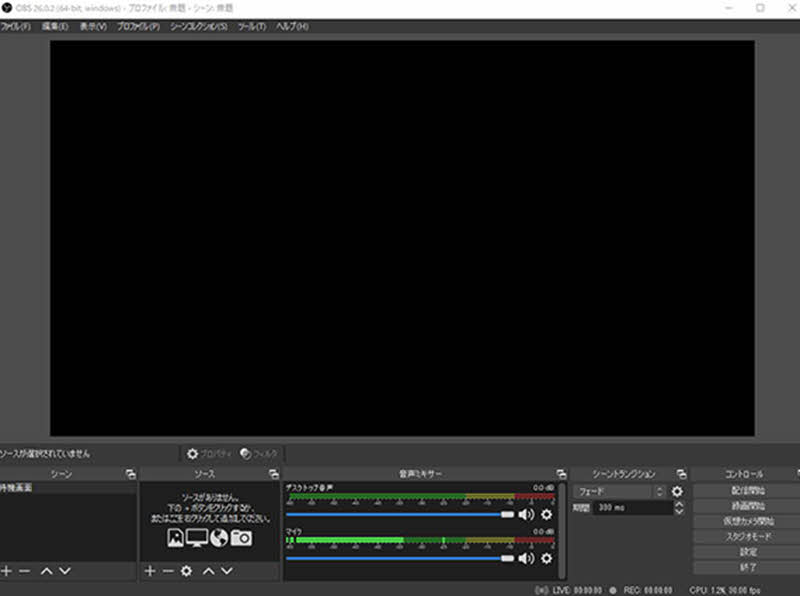
OBS Studio is a free screen recording software for PCs that is feature-rich and suitable for a wide range of uses. If you want to screen record Netflix on your PC, OBS Studio is a strong option. However, because it has so many features, it can be difficult for beginners to use, and it may take some time to get used to the settings and operation methods. Now, let's introduce the steps to screen record Netflix using OBS Studio.
Step 1Open the Netflix video you want to record to the playback screen, and then launch OBS Studio.
Step 2Select the Netflix playback screen and then OBS"Screen capture"Add it to the source. Adjust the capture range, audio settings, etc. as needed."Start Recording" buttonClick to start recording.
Step 3If you want to end the recording,"Stop recording" buttonClick the button. Once recording is complete, the video file will be automatically saved to the previously specified save folder.
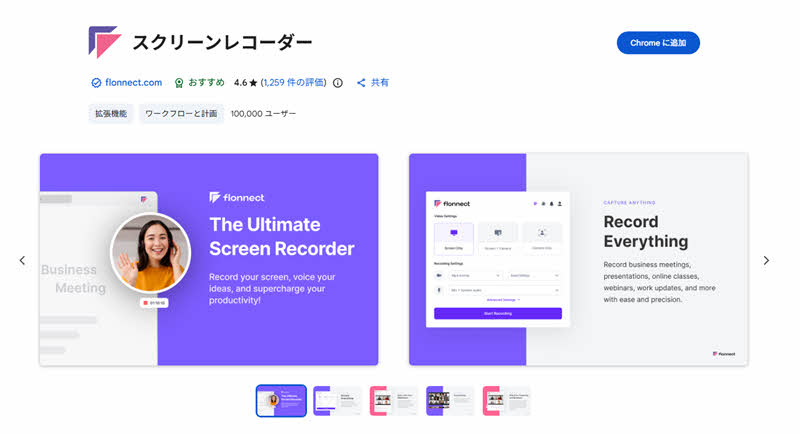
Besides OBS Studio, there are other ways to record and save Netflix using Google Chrome extensions such as "Screenity" and "Screen Recorder." However, screen recording using browser extensions has the disadvantage of often resulting in unstable image and sound quality, making it difficult to maintain the original quality. Also, long recordings may slow down the browser or the recording may stop midway. So, using "Screen Recorder" as an example, let's look at the steps to record Netflix using a browser extension.
Step 1First, from the Google Web Store"Screen recorder"Install the software. After installation, open the playback page of the Netflix video you want to record in your browser.
Step 2Launch the "Screen Recorder" from the browser extension icon,"Record Screen"Select it. After setting the save format and image quality as needed,"Start Recording"Click the button to start recording.
Step 3If you want to end the recording,"Stop" buttonClick. Once recording stops, you will be able to download the recorded Netflix video from the save screen.
Even if you don't have a computer handy, you can sometimes screen record Netflix using your smartphone. Since the recording methods differ between Android and iOS, this article will explain how to screen record Netflix on your smartphone for each device.
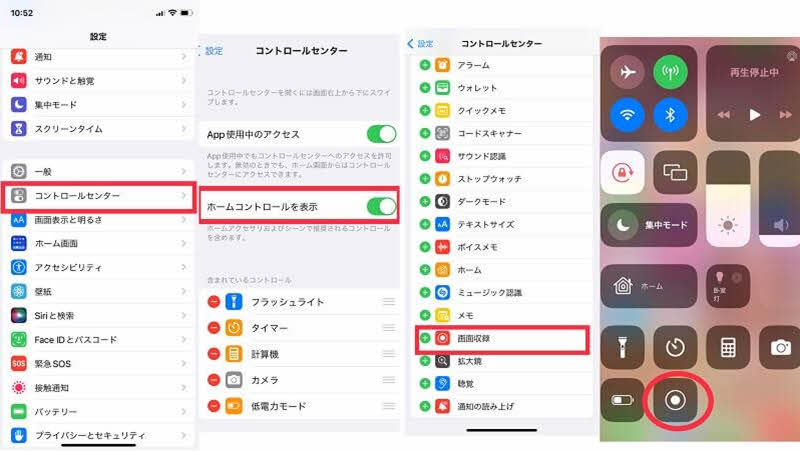
If you want to screen record Netflix on your iPhone, the easiest method is to use the built-in "Screen Recording" function. Of course, you can also use third-party recording apps, but unless you need special features, we recommend trying the iPhone's standard function first. Now, let's take a look at how to screen record Netflix on your iPhone.
Step 1Beforehand, open the "Settings" app."Control Center"from"Screen recording"I'll add that. After that, launch the Netflix app and start playing the title you want to save.
Step 2, display the Control Center,"Screen recording"Tap the icon. Recording will start automatically after the countdown ends.
Step 3To stop recording, tap the recording status bar at the top of the screen, or press the screen recording icon again from the Control Center. After processing is complete, the recorded data will be saved."photograph"It will be saved in the app.
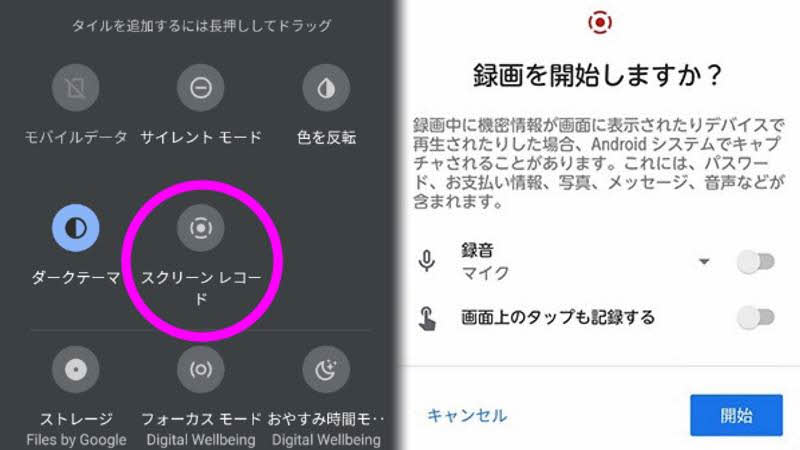
If your device is running Android 11 or later, it has a built-in screen recording function that allows you to record your Netflix screen. However, please note that devices running Android 10 or earlier do not have this built-in function, so you will need to install a separate screen recording app.
Step 1First, launch the Netflix app and navigate to the playback screen of the video you want to record.
Step 2Swipe down from the top edge of the screen to open the quick settings panel."Screen Record"Tap the icon. You can check necessary settings such as audio and video quality before starting recording.
Step 3If you want to end the recording, the following will be displayed on the screen."Stop" buttonPress the button. Once recording stops, the video file will be automatically saved to your device and can be viewed at any time.
So far, we've shown you how to screen record Netflix on various devices. However, because Netflix content is protected by DRM, even if the recording itself is successful,Recorded Netflix videos are showing a black screen.This is not uncommon. Another disadvantage of screen recording is that it requires continuous playback of the video from beginning to end, which takes a considerable amount of time to save.
So, what alternative methods are available if you want to save videos more efficiently while avoiding the black screen problem?
Therefore, we recommend the dedicated video download software "StreamByte for VideoThis software allows you to save Netflix videos in formats such as MP4, MKV, and MOV. Furthermore,DRM protection removalBecause it supports this feature, a major advantage is that it can avoid the black screen problem that often occurs during screen recording.
Unlike screen recording, this method saves the video directly, allowing for high-speed downloads while maintaining the original image quality to the fullest extent. This not only significantly reduces saving time but also provides a more comfortable offline viewing experience.
Why StreamByte for Video is recommended
Here, "StreamByte for VideoThis explains how to easily save Netflix videos using [this method].
step 1"StreamByte for Video"RegistrationAfter that, various popular video streaming services, including Netflix, will be displayed on the main screen.
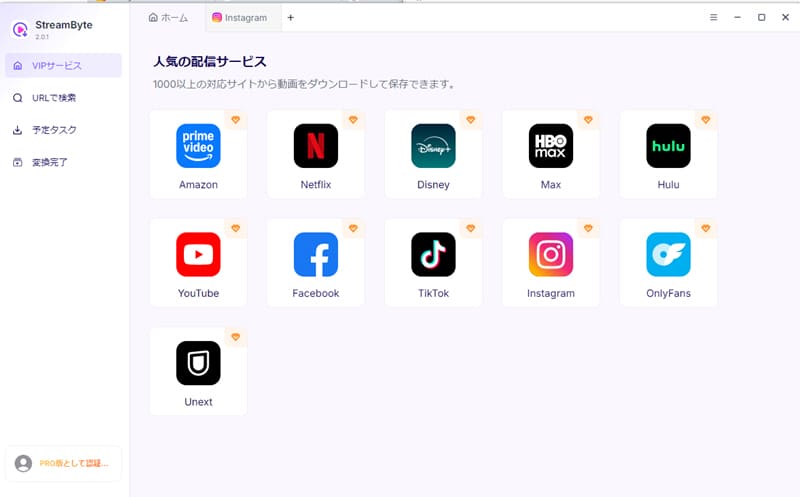
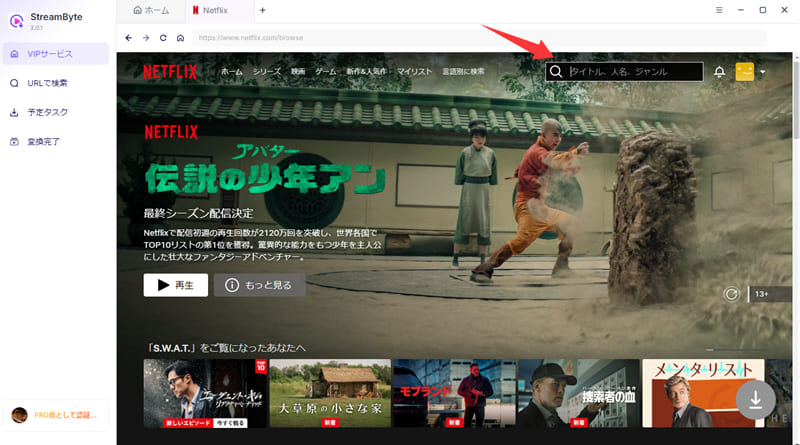
Step 2Select Netflix from the list of services and sign in with your Netflix account. After logging in, you can easily find the titles you want to download using the built-in browser's search function.
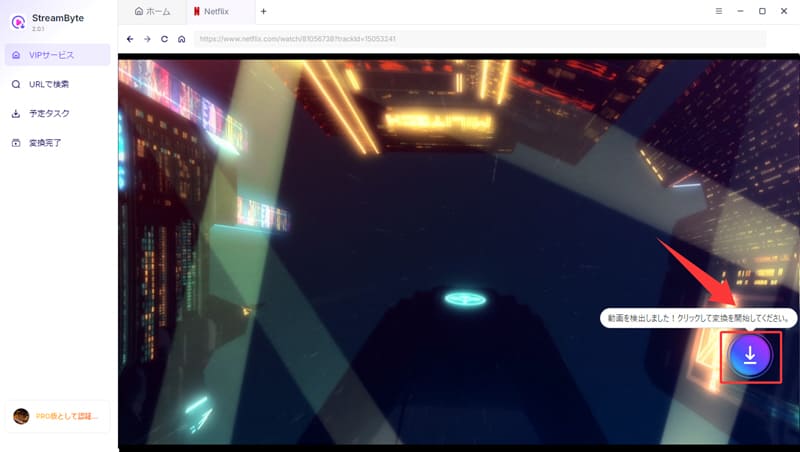
Step 3To save a video, open the video and click the download icon on the right side of the screen to add it to the list. You can also register multiple videos and download them all at once.
Step 4After adding the video, customize the output format, audio language, subtitle settings, etc., as needed. Once the settings are complete, press the "Download" button to start saving.
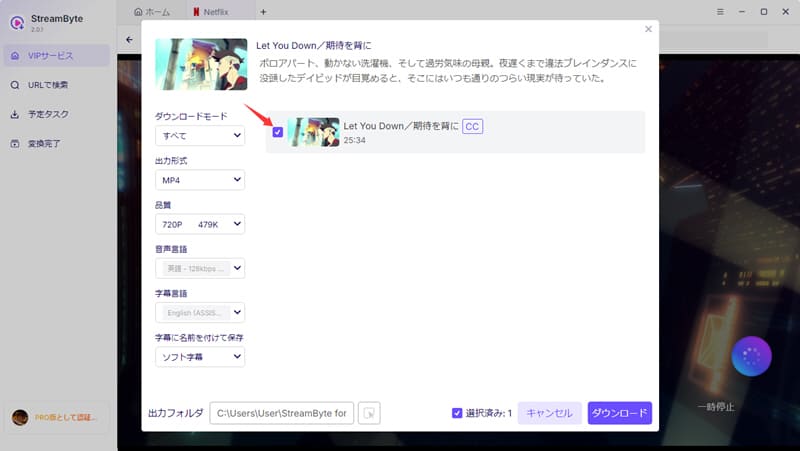
Step 5The download progress is"Scheduled Tasks" sectionYou can check it there. Once the process is complete, the video will automatically move to "Conversion Complete" and you can play it anytime from the save location folder. This will allow you toSave Netflix videos to your computercan.
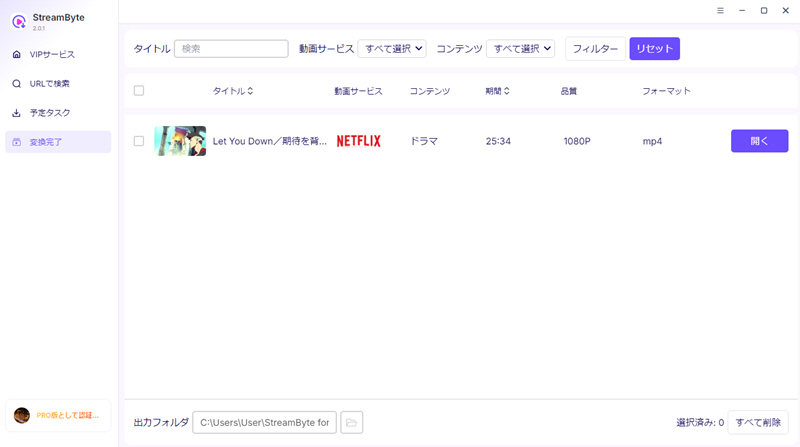
"StreamByte for VideoUsing this tool, even beginners can easily save Netflix videos by following the steps above. Furthermore, unlike screen recording, a major advantage is that it can download at up to 8 times the normal speed while maintaining high image quality. In my own test, it took only about 2 minutes to save a 23-minute Netflix video. It is an extremely convenient tool for anyone who wants to efficiently save high-quality Netflix videos.
100% safe, virus-free
100% safe, virus-free
The reason why screen recordings of Netflix videos appear black is because Netflix content is protected by DRM. DRM encrypts the videos into a special format, which cannot be properly recorded with typical recording software. Therefore, even if you record, the video will appear black. If you want to save Netflix videos, you need DRM-compatible software.StreamByte for VideoYou will need to use a tool like this.
Screen recording Netflix content is illegal. However, if you use recorded Netflix videos for personal viewing or learning purposes, you are unlikely to be held liable by the rights holder in many cases. However, if you publish the recorded content on the internet, distribute it to third parties, or use it for commercial purposes, it may constitute copyright infringement. Please note that specific legal treatment varies by country and region, so please check the laws in your area for details.
It is generally not possible to record Netflix videos on your TV. This is because many TVs and video equipment are equipped with HDCP, a copyright protection technology. Even if you try to record by connecting an HDMI recording device, in most cases the recorded video will be a black screen or the audio will not be recorded, and it will not be saved properly. Therefore, if you want to save Netflix videos, you should use dedicated video download software.StreamByte for VideoIt is recommended to use "[ ]".
Generally, it is believed that screen recording of Netflix videos is not often automatically detected. However, commercial use of recorded videos or unauthorized redistribution may violate copyright law. Therefore, saved content should be limited to personal use, and sharing or publicizing it to third parties should be avoided.
This article provided a detailed explanation of how to record your Netflix screen on devices such as PCs and smartphones. Methods like OBS are difficult to use, and often result in a black screen after recording. Therefore, as an alternative when Netflix screen recording is not possible,StreamByte for Video" was introduced.
This software can remove DRM protection, avoiding the problem of the screen going black after recording, and allowing you to easily save your favorite Netflix content. Furthermore, it boasts fast recording speeds, high stability, and excellent image quality. If the original video supports it, it can even save in up to 8K resolution.Offline playbackYou will get an experience that is almost identical to that.
"StreamByte for Video"forFree trialWe also have a solution available, so if you're having trouble recording your Netflix screen, please give it a try.
100% safe, virus-free
100% safe, virus-free
Born in Tokyo in 1997. After graduating from a university in London, he worked at a major IT media company, writing articles about video streaming services, video downloaders, and digital content.More than 3 years of experience in editing, proofreading, and writing directionThe articles he has worked on have garnered over 5 million page views, and he is well-known for producing content that is carefully crafted from the reader's perspective.
Currently, as an editor and web writer at StreamByte, he works on creating articles that help users solve their problems, focusing on information related to video streaming services and downloads, with the aim of being "user-oriented, easy to understand, and immediately useful."
Read more articles together

Experts in supporting offline viewing of streaming video services
Subscribe to StreamByteCopyright © 2026 StreamByte. All rights reserved.



Get the latest news, product upgrades, information, guides, discounts and more about StreamByte.
Please enter a valid email address.

A highly capable video downloader:
StreamByte for Video
Even beginners can rest assured! You can try saving videos for free first!







 English
  Japanese
  Chinese (traditional)
  German